
Gifting Apps: The Perfect Last-Minute Gift

What would a smartphone or tablet be without apps? That’s right, useless. In addition to pre-installed apps, social media programs and useful tools, there are also those that you have to pay for. But not everyone wants to spend money on them. So why not give an app as a gift? We’ll show you how.
Are you frantically searching for a gift – even at the last minute? Whether it’s just to make someone happy, a birthday present, Christmas or any other occasion, have you ever thought about apps? Of course, it makes sense not to choose free games or apps, but ones that cost a specific price. Gifting these small apps only takes a few minutes and is very easy, especially for owners of an Apple device, such as an iPhone, iPad or Mac. Even if users of Google’s Android have a harder time in comparison, you can find the right app gift here too. We’ll show you how.
Giving iOS apps as gifts: step-by-step instructions
Step 1: Select the right app
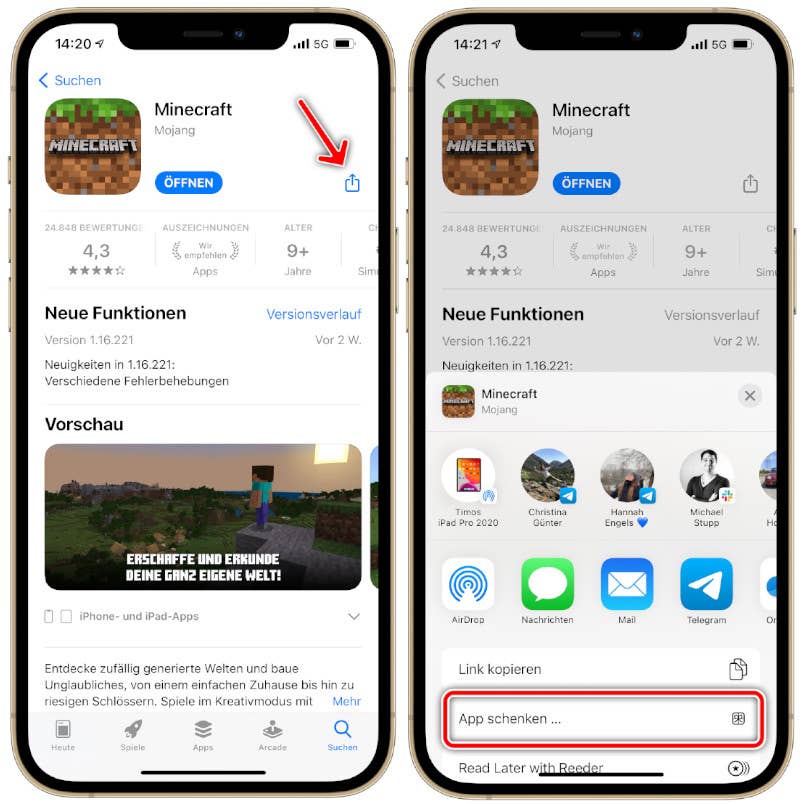
Once you know which app you want to give as a gift, you can proceed directly to the checkout. Once you’ve selected the desired app in the Apple App Store or iTunes Store, you can continue via the app details. You can access the these by tapping on the icon with three dots in the top right-hand corner of the page. In addition to the “Share app” option, you can also select “Give app as a gift”.
Thanks to the former function, apps can be shared with other people in the vicinity via AirDrop, provided the function is activated on their iPhone, iPad or Mac. Another option is available to send a gift via email.
Step 2: Select recipient and write message
If you select the “Give app as a gift” option, a window with various input fields will open. Here you can enter the details of the person who will be receiving the app as a gift on their iOS device. This takes the form of their e-mail address and name. At the same time, you can also add a note in which you can state the reason for the gift or simply leave a message. You can enter a maximum of 200 characters here.
However, there’s another important spot in the input field: the sending date. Here you can select whether the iPhone app should send the email to the recipient immediately or on a specific day.

- Tip: “Today” is selected by default so that the app gift is sent to the recipient immediately. If the gift should reach them on a different day, for example on their birthday, the corresponding date must be selected using the selection wheel. This can be done up to 90 days in advance.
Step 3: Design the gift
Once all the recipient’s details and the sending date have been entered, the next step is to design the greeting card. If you want to give an app as a festive gift, you can add a bit of pizzazz to the digital gift. Apple offers four backgrounds in different colors in the App Store. Once you’ve decided on a theme, you can move on to the next step.
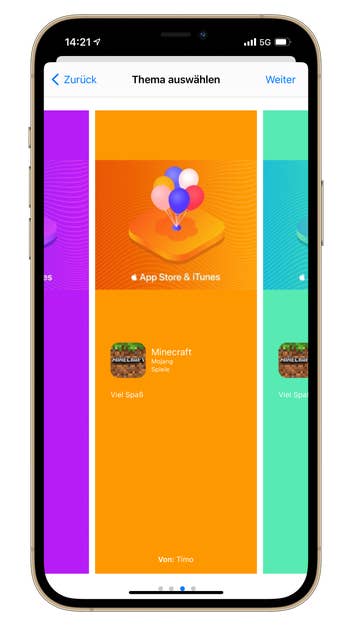
Step 4: Confirm purchase
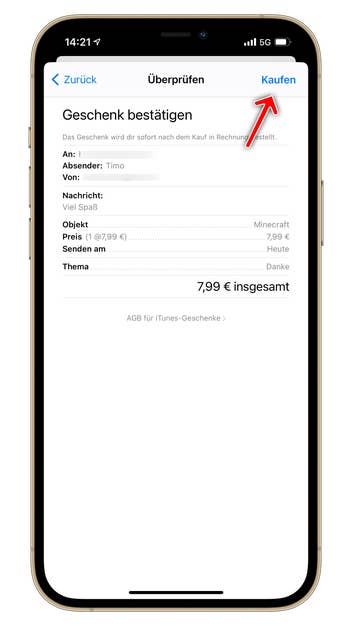
At the end, you’ll see a summary of all the information and have to confirm it. The overview lists the recipient’s details, the individual message, the shipping date and the price of the iOS app that you’re gifting. If all the details are correct, click on the Buy button to pay for the app.
Step 5: Pay and complete the purchase
In the last step, you’ll need to log in to the Apple App Store or iTunes Store with your own Apple ID if you haven’t already. Here you complete the purchase, whereby payment is made using the payment method stored in your account. In addition to credit cards and credit, Apple also accepts payment via PayPal or your cell phone bill.
Once this has been completed and the app has been paid for, the digital gift is prepared for delivery and arrives in the friend or family member’s email inbox on the date you selected.
How to redeem your app gift
As soon as the iOS app reaches the recipient, they receive an email notification and can collect their gift by clicking on the “Redeem” link in the email. They will be redirected to the Apple App Store on their iPhone or iPad or to iTunes on their Mac. The recipient must log in to the relevant store with their Apple ID and can download and install the app already purchased by the gift-giver on their device free of charge.
→ Apple Pay on iPhone, Mac, Watch and iPad: How it works
Giving in-app purchases as a gift – is it possible?
For a long time, Apple explicitly excluded the giving away of in-app purchases in its guidelines. However, there were signs of a change at the end of last year. In the App Store guidelines, which can be viewed online on the developer page, section 3.1.1 now contains the addition that purchases within apps can also be given away in the future. The function is not yet available, which means that you still cannot gift in-app purchases. However, since iOS version 14.5.1, you can share them with others via Family Sharing.
In-app purchases help you to progress in games or unlock certain functions in the apps. Some of these purchases are therefore only accessible in selected apps. This makes it difficult to give them as a gift. Fixed credit linked to the selected app could be the solution here and an alternative to classic iTunes credit. It could be sent to the recipient as a gift and could only be used within the specified app. However, it remains to be seen whether Apple will resort to this.
Gifting Android apps: only possible via detours
While Apple makes it very easy for users to give apps as gifts, the situation is different for owners of smartphones or tablets with Android. Google has not integrated any option in its Play Store to pass on small apps to other Google accounts. There is also no gift option for apps in alternative stores such as the Amazon App Store. The only option here is to use gift cards, which are available for both the Google Play Store and the Amazon Store. Instead of giving away individual apps, users give away the credit to pay for the Android apps themselves.
Gas stations, supermarkets and other stores offer Google Play credit or vouchers for the Amazon online store for purchase. The credit usually ranges from 15 to 100 dollars. Unlike giving a single app as a gift, this option is therefore significantly more expensive and not necessarily suitable as a small gift. On the other hand, vouchers for the Google Play Store can also be used for other digital goods such as films or music. The Amazon credit cards are even valid for the entire range of the online store.