
One Setting Makes All Your Old Games Look Amazing
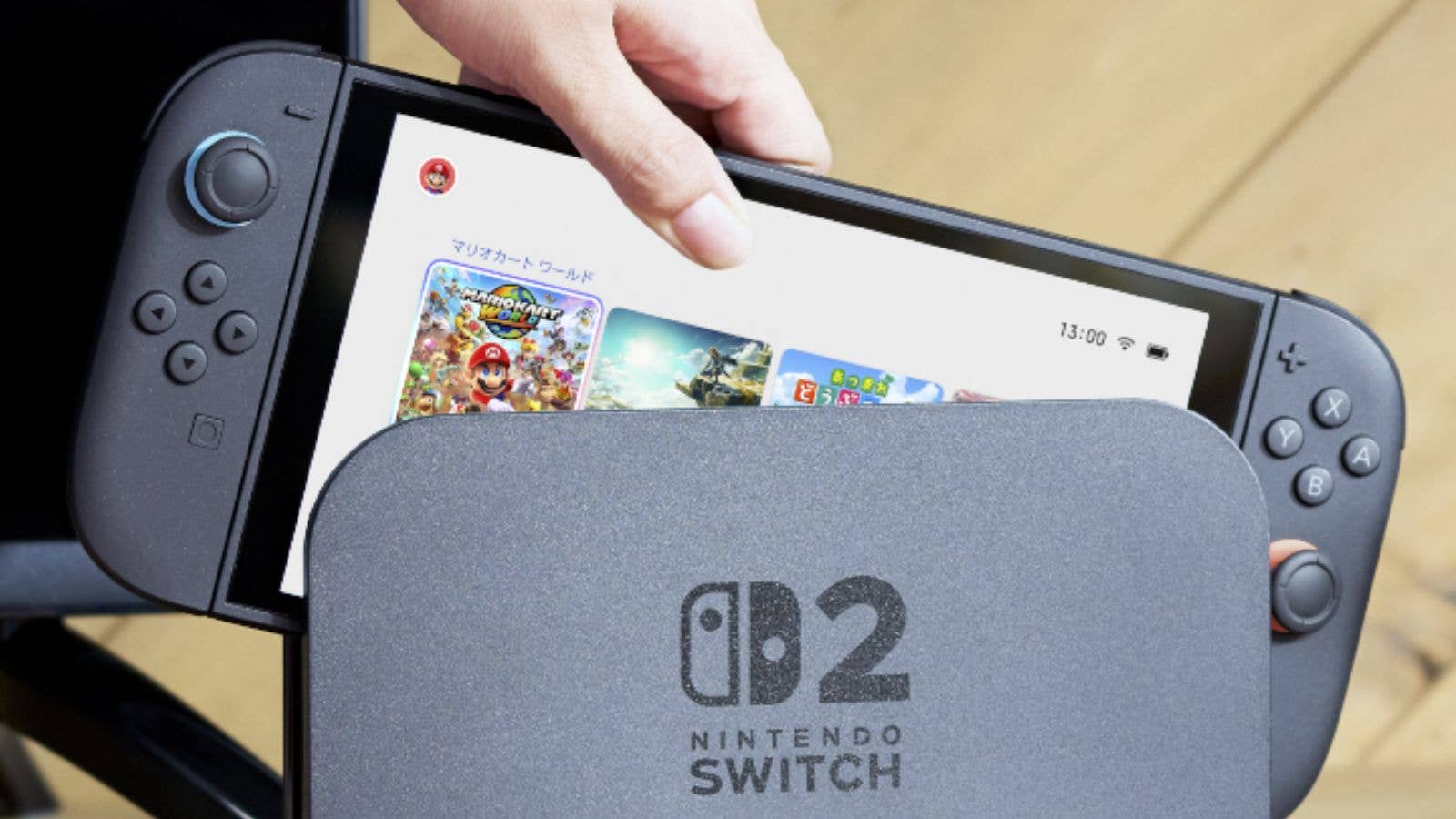
Nintendo just solved the biggest problem with playing original Switch games on the new Switch 2. A hidden setting in the latest update brings docked-level graphics to your handheld. Here is how to enable it and fix blurry visuals.
Ever since launching the Switch 2, Nintendo has focused on delivering thoughtful updates. Most have targeted better optimizations and stable performance for native games designed for the Switch 2. While some titles received proper patches, many original Switch games remained stuck at lower resolutions. Nintendo did not take long to address this by introducing the needed upgrade for these titles.
Why Enable Handheld Boost Mode on Switch 2
The company has announced the new Handheld Boost Mode feature, which arrives with the new system update version 22.0.0 that has been rolled out this week. Technically, it is a toggle that forces select original Switch games to run in their TV or docked mode equivalents. This means they are upscaled to 1080p resolution, matching the native display of the Switch 2.
In addition to sharper graphics, some titles gain a performance boost for smoother gameplay that gamers may notice.
Handheld Boost Mode essentially mimics the console mode experience, which is docked and connected to an external display, but with the device remains undocked or handheld.
However, there are a few considerations when using this feature. First, it may increase power consumption during handheld gaming, which reduces battery life more quickly. Some games might also show graphical distortions, incorrect element placement, or text issues. Touchscreen and Joy-Con 2 functionality may also be affected in certain cases.
More importantly, not all original Switch games can take advantage of this mode. This is because some rely exclusively on touchscreen controls, motion sensors, or specific Joy-Con features. Examples include Super Mario Maker 2, Super Mario 3D All-Stars, The Legend of Zelda: Skyward Sword HD, and Pokémon: Let’s Go series titles.
Despite these drawbacks, the graphical enhancements make the feature well worth enabling for most players. It is completely free and available to all Switch 2 owners.
How to Turn On Handheld Boost Mode
To use the feature, first install the latest firmware update. Then, from the home menu, go to System Settings. In the right-hand tab, scroll down to Nintendo Switch Software Handling and select Handheld Boost Mode. Toggle it on to activate the setting.
Beyond the new mode, the update includes several other improvements such as enhanced game chat functionality, better visibility of data types in storage management, and automatic saving of connectivity profiles even in airplane mode.
Are you planning to enable Handheld Boost Mode after updating? Share your thoughts and experiences in the comments!
We mark partner links with this symbol. If you click on one of these links or buttons–or make a purchase through them–we may receive a small commission from the retailer. This doesn’t affect the price you pay, but it helps us keep nextpit free for everyone. Thanks for your support! Prices are based on the date of publication of this article and may be subject to change.