
22 Hidden Android Hacks to Supercharge Your Device

We prepared a comprehensive guide that includes new features and existing ones from earlier Android versions, as well as the most recent releases like Android 16 and Android 15. Many of these features should work on most Android devices, regardless of their OS version.
You can be sure to have access to these features by updating your phone or tablet to the latest Android release.
Extend Battery Life
Depending on your Android model, manufacturers with customized Android skins have incorporated new battery tools and optimizations. With recent Android versions, there are several ways to extend battery life.
On stock Android devices such as Pixel and Motorola phones, there are no direct tools to enable advanced battery optimizations. However, Pixel phones include Battery Health Assistance. Here’s how to make sure it is enabled:
- Go to Settings.
- Tap Battery.
- Choose Battery health.
- Tap Battery health assistance.
- Toggle it on, then tap back to save changes.
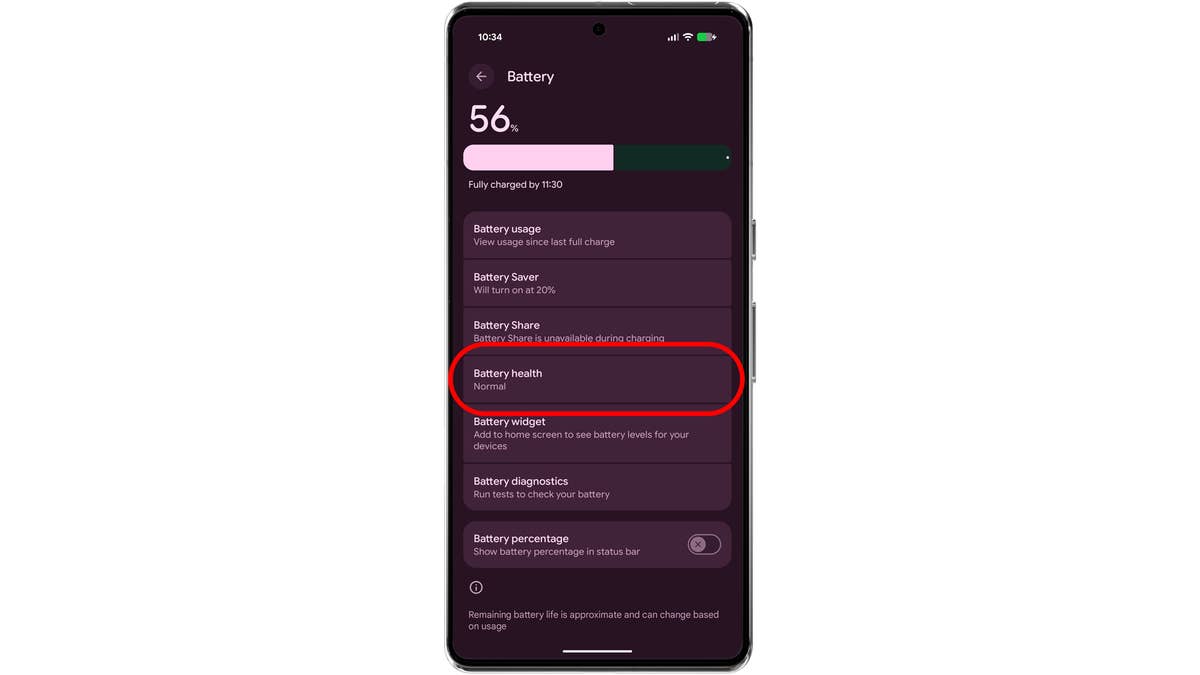
Go the settings and then choose battery. Tap on the Battery health.
Android Tips and Tricks Battery Extend Saver Mode Pixel Phone
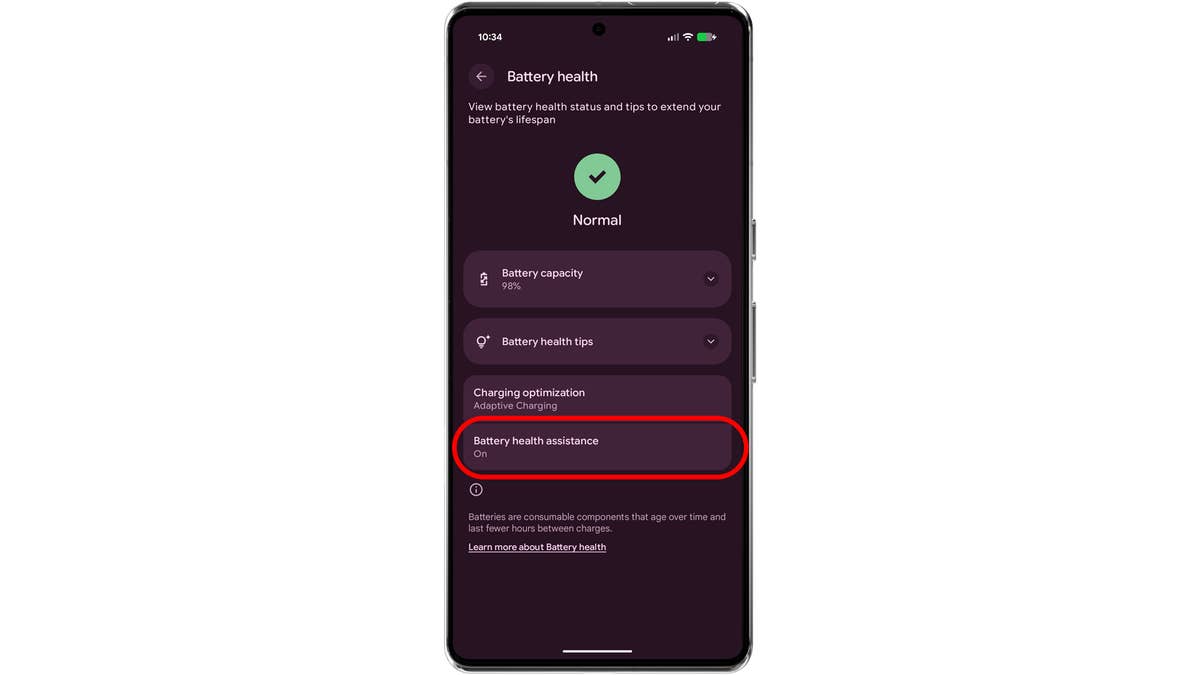
Tap on the Battery assistance.
Android Tips and Tricks Battery Extend Saver Mode Pixel Phone
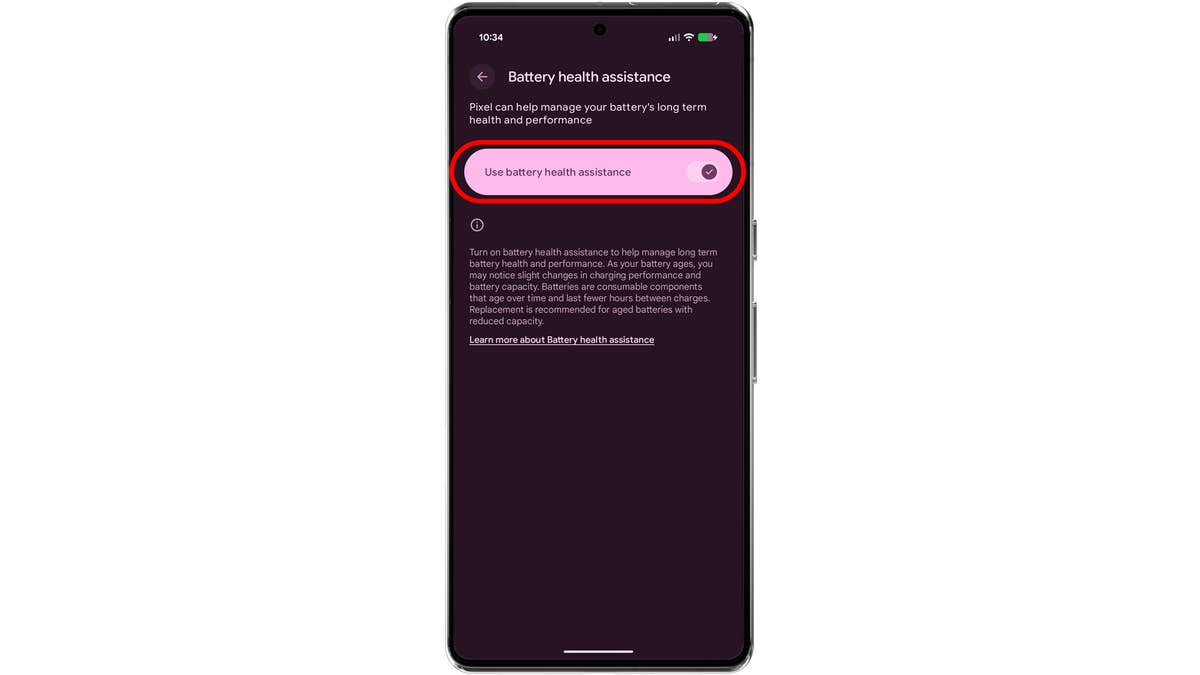
Enable Battery health assistance.
Android Tips and Tricks Battery Extend Saver Mode Pixel Phone
For Chinese OEMs with skinned Android, including HyperOS on Xiaomi and Poco devices, there are additional options. One of them is Battery check-up:
- Open Settings.
- Scroll down and tap Battery.
- Select Battery check-up.
- Tap Add mins to extend battery life.
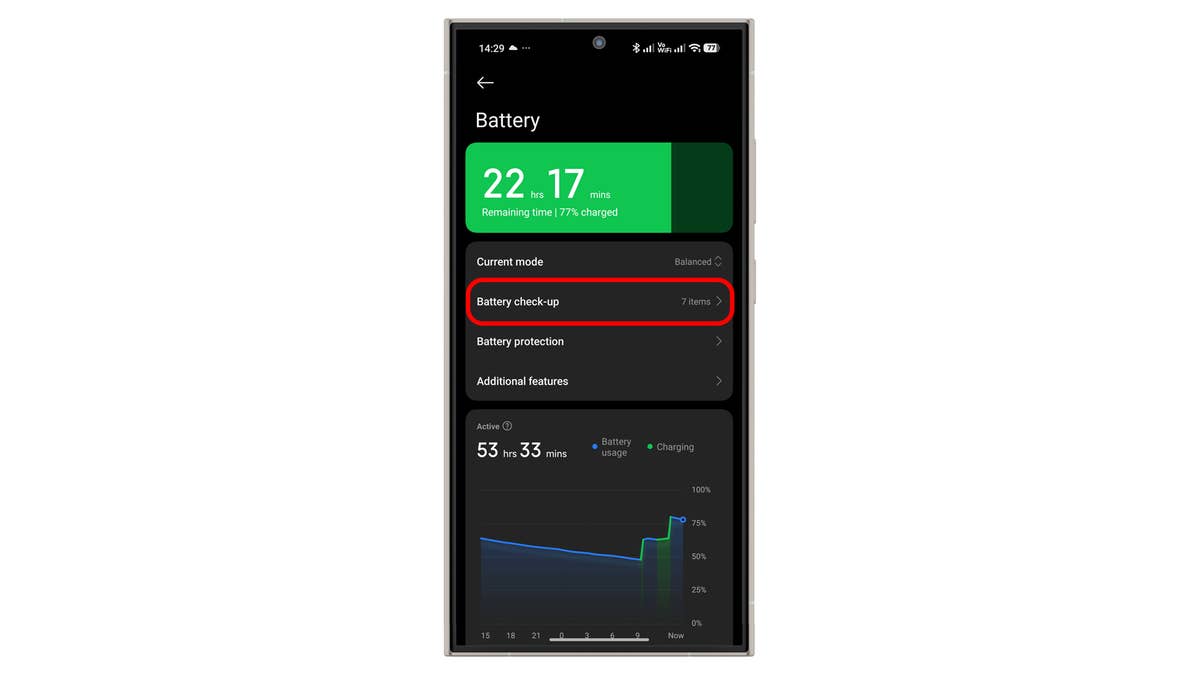
Tap on the Battery check-up.
Xiaomi HyperOS 3 battery check-up and battery saver features
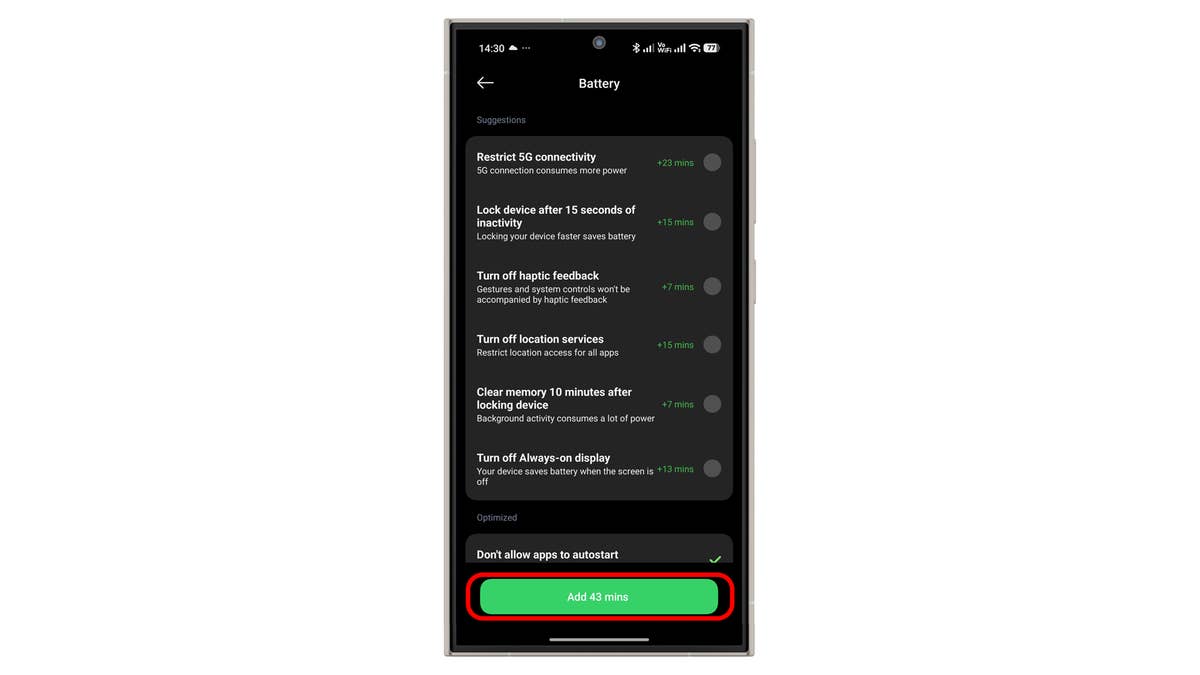
Tap Add 43 mins to extend the battery life of your Xiaomi phone.
Xiaomi HyperOS 3 battery check-up and battery saver features
Alternatively, you can enable Battery Saver mode in the battery settings.
Schedule or Automate Devices with Gemini
Gemini has replaced Google Assistant in most Android operating systems. It is smarter and can handle complex tasks. One useful feature is the ability to create routines or schedules, even for devices that do not natively support timers, such as smart bulbs.
For example, you can set up a daily routine to turn a bulb on or off. Here’s how:
- Set up your smart home device in Google Home or a third-party app such as Samsung SmartThings or Xiaomi Home.
- Assign its name and room if required.
- Launch the Gemini app.
- Integrate Google Home with the other smart home apps if needed.
- Command: “Schedule the outdoor smart bulb to turn on every 6:00 PM daily and turn off at 5:00 AM.”
- Wait for Gemini to create the schedule.
- Adjust or add schedules later in Gemini.
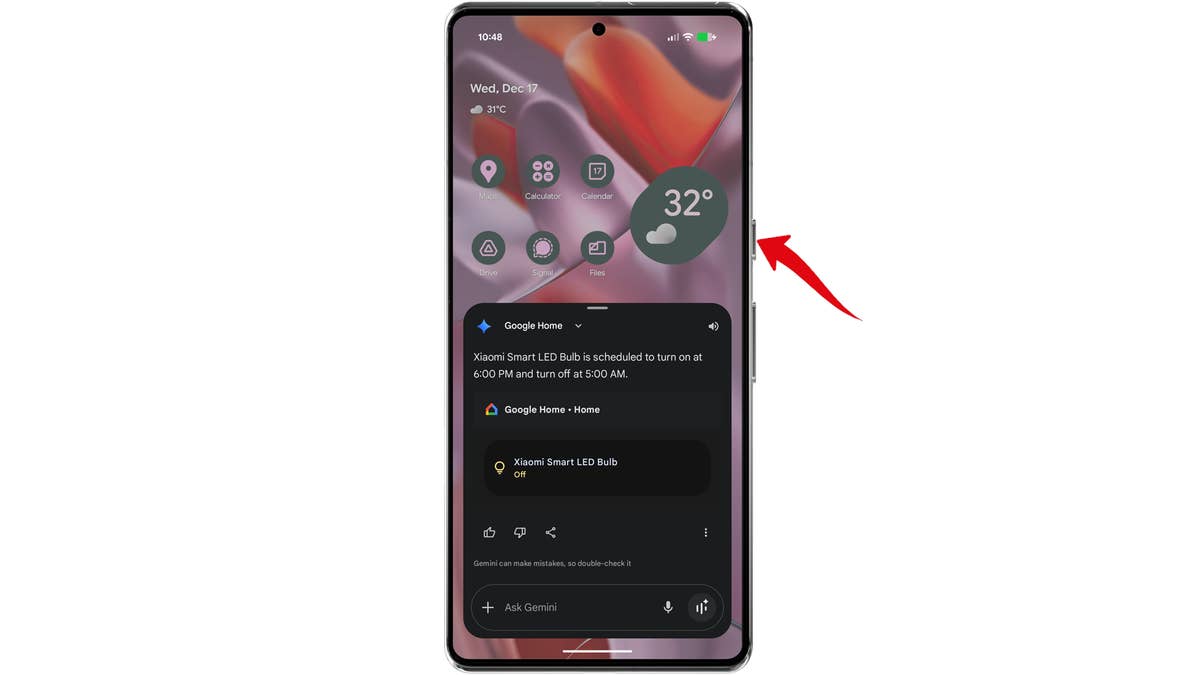
Launch Gemini and speak your command to specify the automation or schedule.
Android Tips and Tricks Automate Smart Device Using Gemini
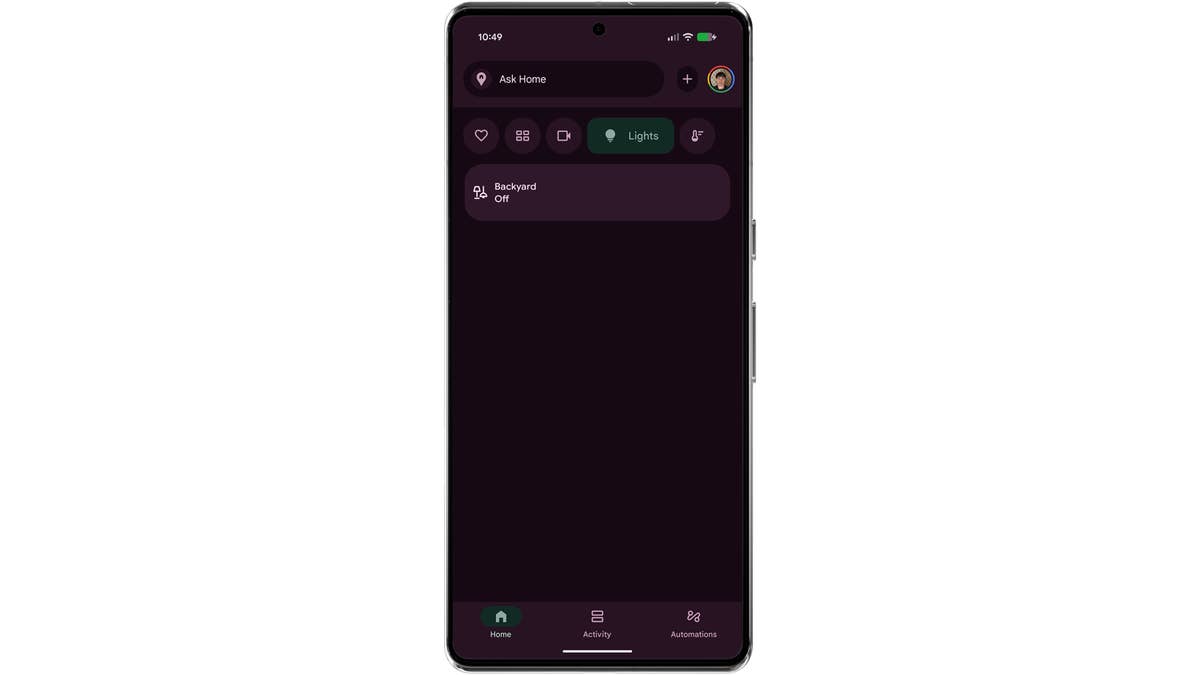
You can check the smart home device status on the Google Home app.
Android Tips and Tricks Automate Smart Device Using Gemini
Android 16 enables faster cross-device file sharing. Pixel smartphones can now share photos and files with iPhones using Quick Share, which works directly with AirDrop.
- Open the Photos app or Files.
- Select the image or document you want to share.
- Tap Quick Share in the Share Sheet.
- On the iPhone, enable AirDrop with Everyone selected.
- Accept the transfer on the iPhone.
This works both ways. You can also share photos from the iPhone using AirDrop, provided Quick Share is enabled and set to discoverable on the Pixel. Currently, this is available for the Pixel 10 series.
Xiaomi’s HyperOS 3 also supports direct file sharing with iPhones through the Xiaomi Interconnectivity app:
- Download the Xiaomi Interconnectivity app on the iPhone.
- Open the app and tap Xiaomi Share.
- Turn on Xiaomi Share on your Xiaomi phone.
- Select the photos or files you want to share.
- Choose the Xiaomi device from the list.
- Tap Accept to confirm the transfer.
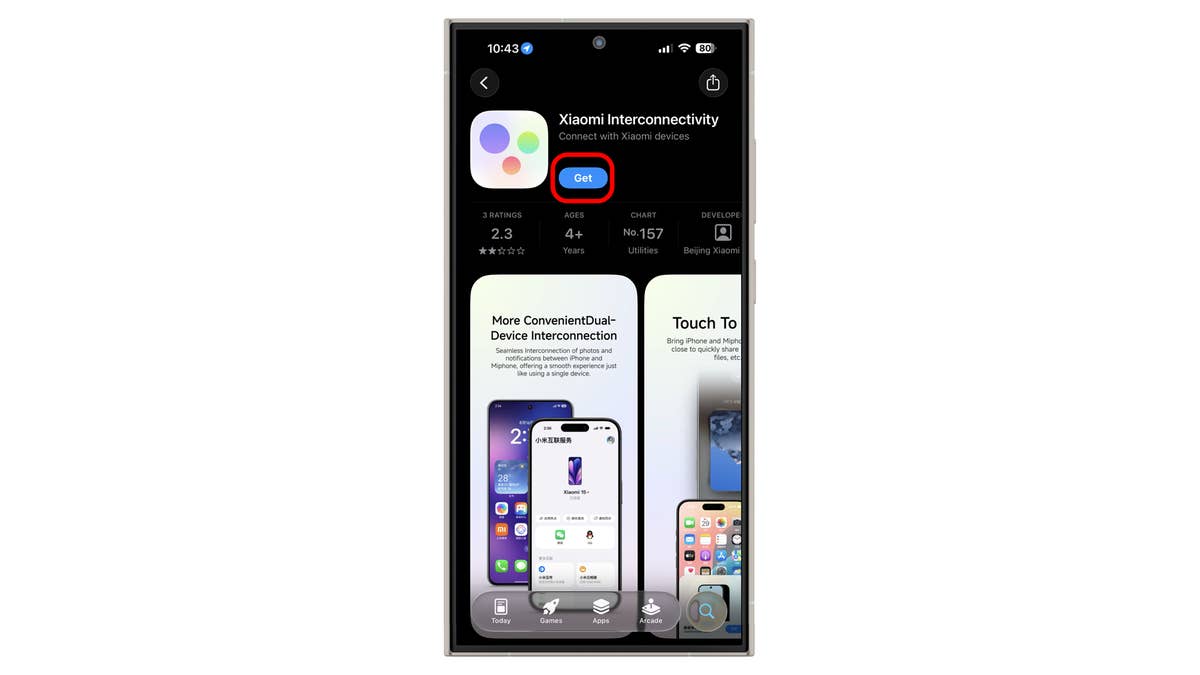
Install the Xiaomi Interconnectivity app on your iPhone.
HyperOS 3 adds cross-device feature for sharing photos between iPhones.
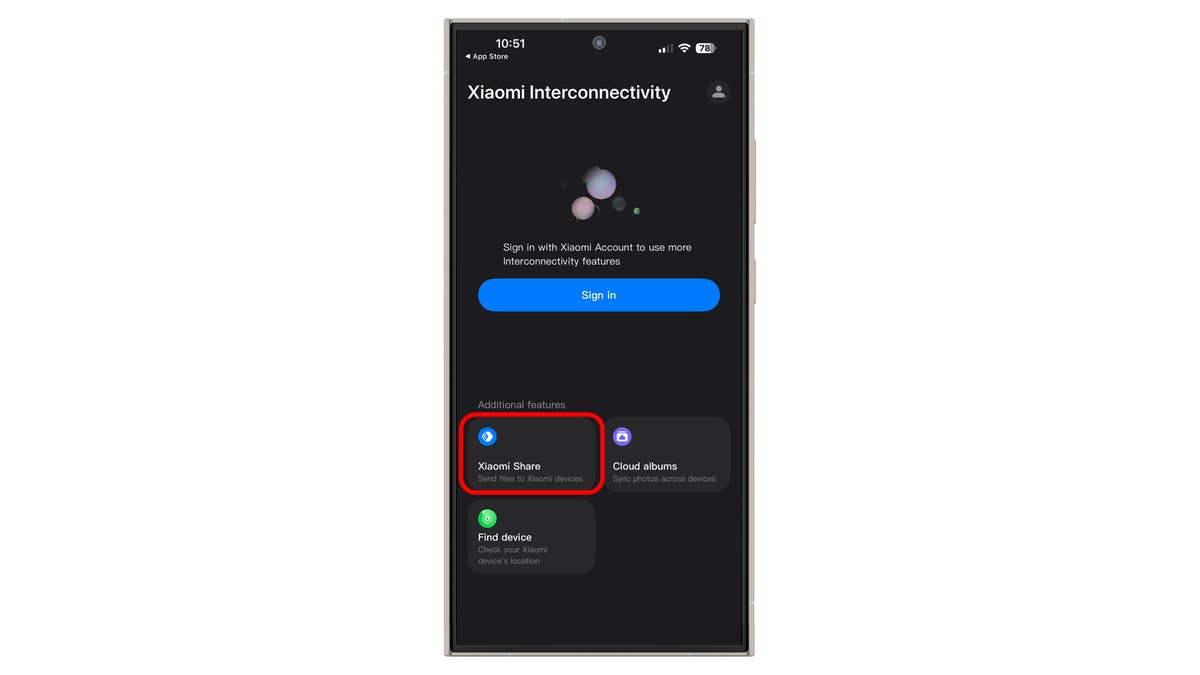
On the Xiaomi Interconnectivity app on your iPhone, tap on the Xiaomi Share button.
HyperOS 3 adds cross-device feature for sharing photos between iPhones.
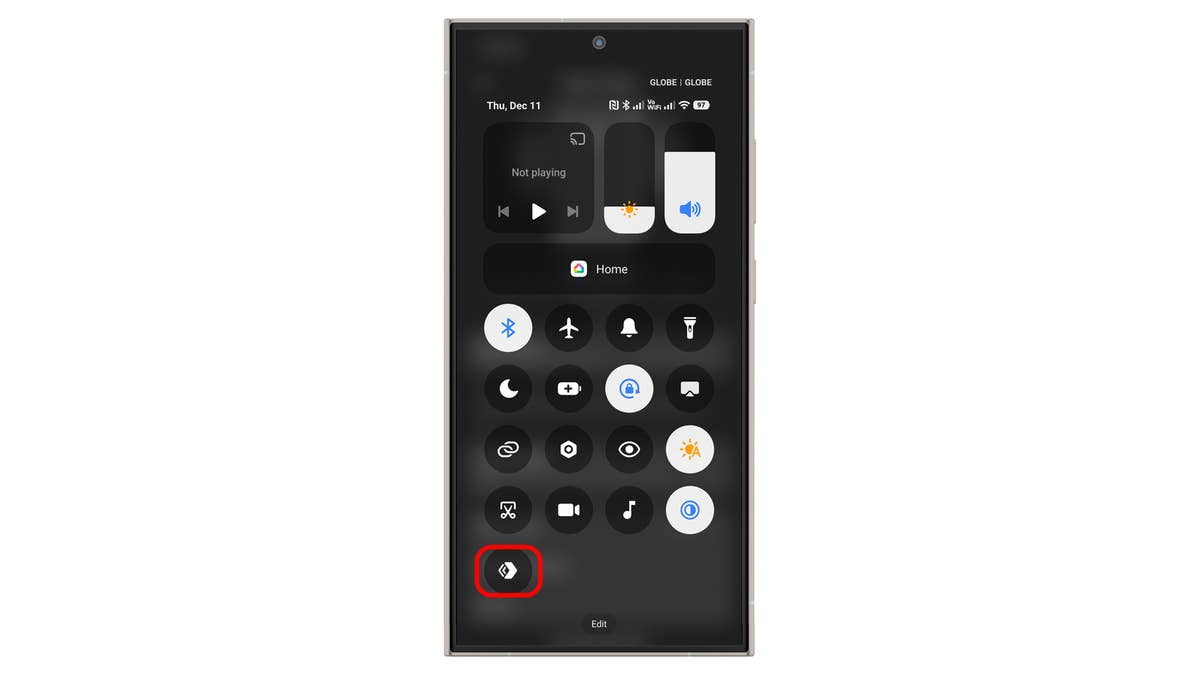
Tap on Share button on your Xiaomi phone.
HyperOS 3 adds cross-device feature for sharing photos between iPhones.
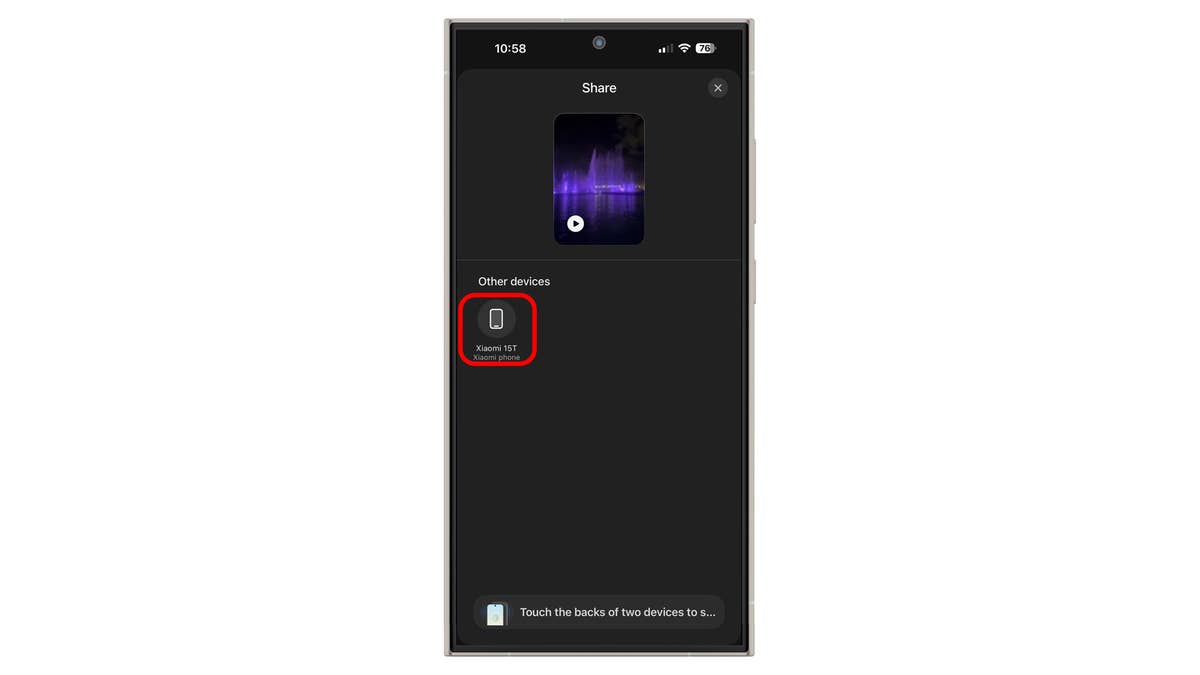
On the Xaiomi Interconnectivity app, tap on the target Xiaomi device.
HyperOS 3 adds cross-device feature for sharing photos between iPhones.
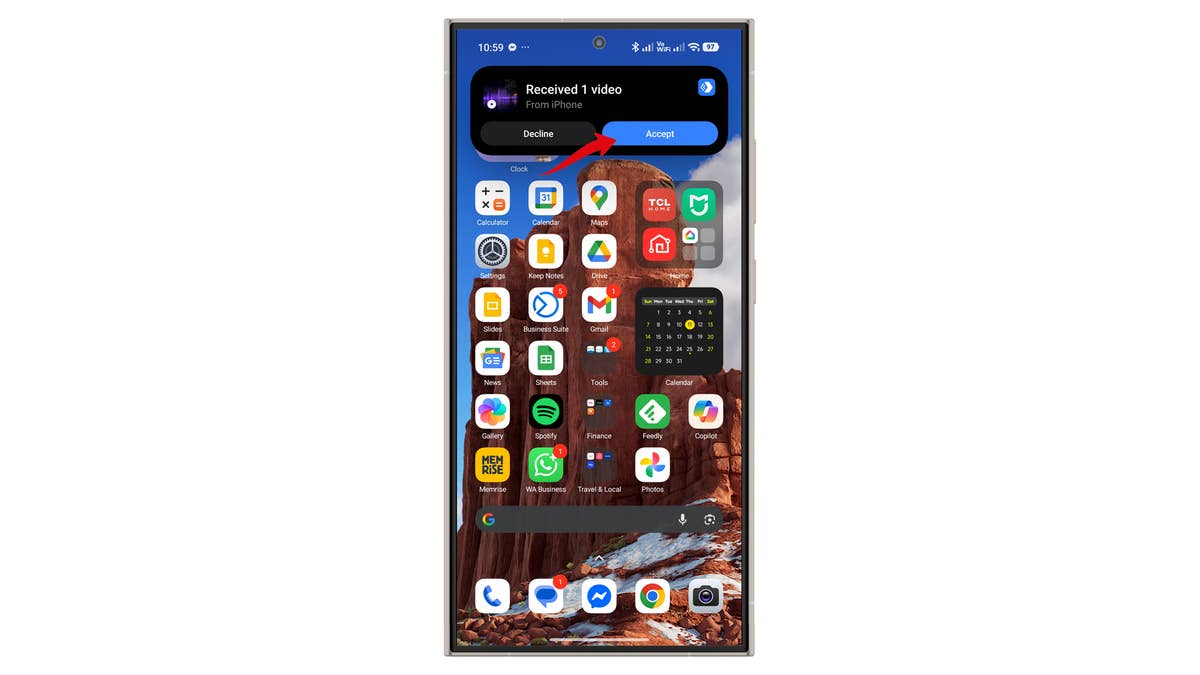
Tap on the Accept button to receive the AirDrop files or photos.
HyperOS 3 adds cross-device feature for sharing photos between iPhones.
The Extra Dim feature was introduced in earlier Android versions and has been adopted by many brands, including Xiaomi, Samsung, OnePlus, and Vivo. When enabled, it reduces brightness to the lowest possible level, which is useful for eye comfort at night.
On Pixel phones, you can enable it from Settings or Quick Settings:
- Go to Settings.
- Scroll down and choose Accessibility.
- Toggle on Extra dim.
- Alternatively, open the Quick Settings panel and tap the toggle.
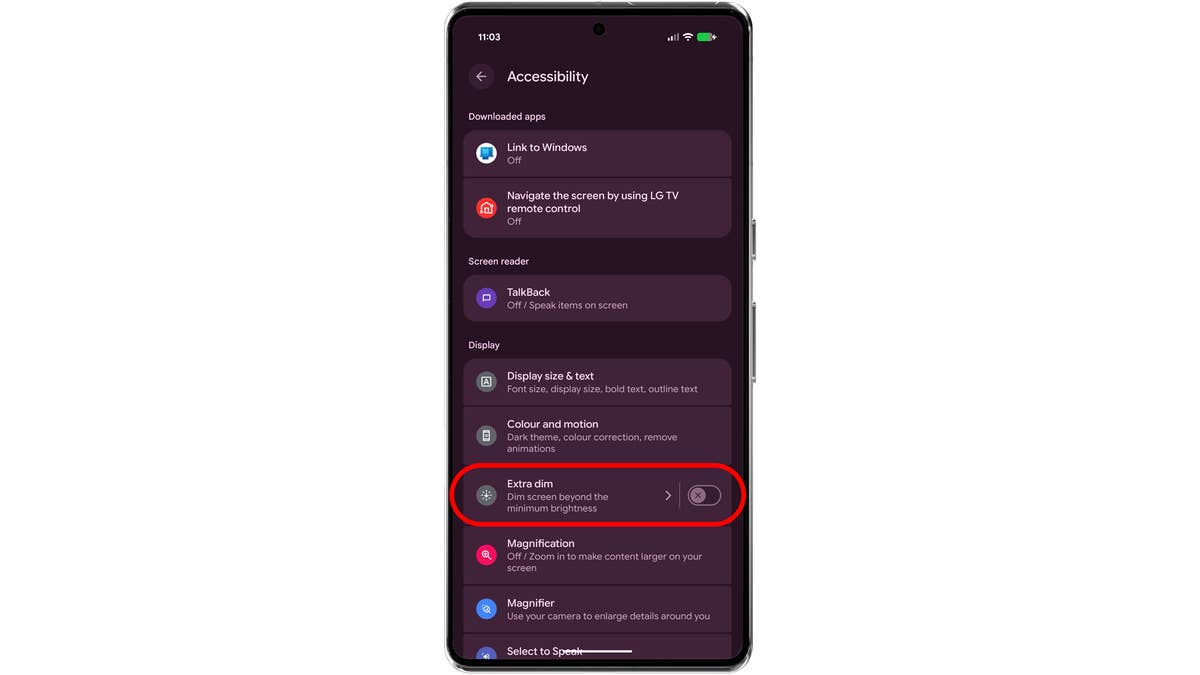
Go to Accessibility in the Settings and then choose Display extra dim.
Android Tips and Tricks Make Display Extra Dimmer
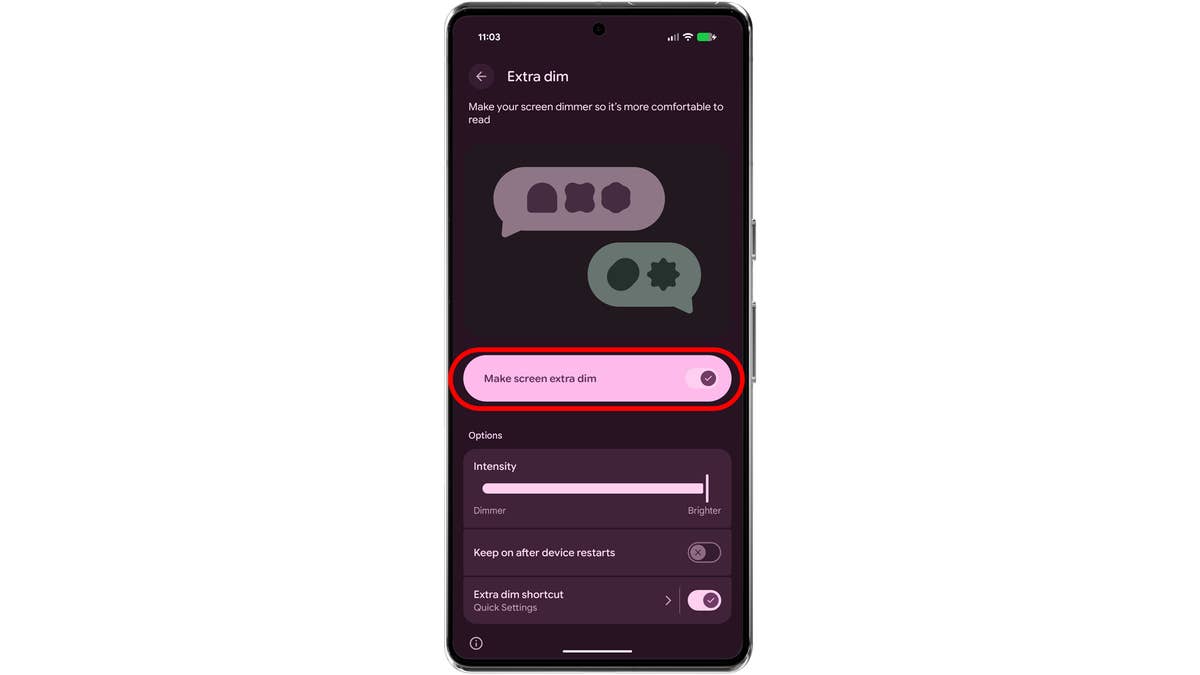
Toggle on the Make display extra dim.
Android Tips and Tricks Make Display Extra Dimmer
Force Apps to Use Dark Theme
A new feature in Android 16 QPR2, first available on Pixel devices, is Expanded Dark Theme. It forces more apps to use a dark theme, saving battery since darker pixels consume less power. This feature will arrive on more Android devices next year.
To enable it on Pixel phones updated to Android 16.1:
- Go to Settings.
- Tap Display & touch.
- Choose Dark theme.
- Select Expanded dark theme.
- Tap back or exit to save changes.
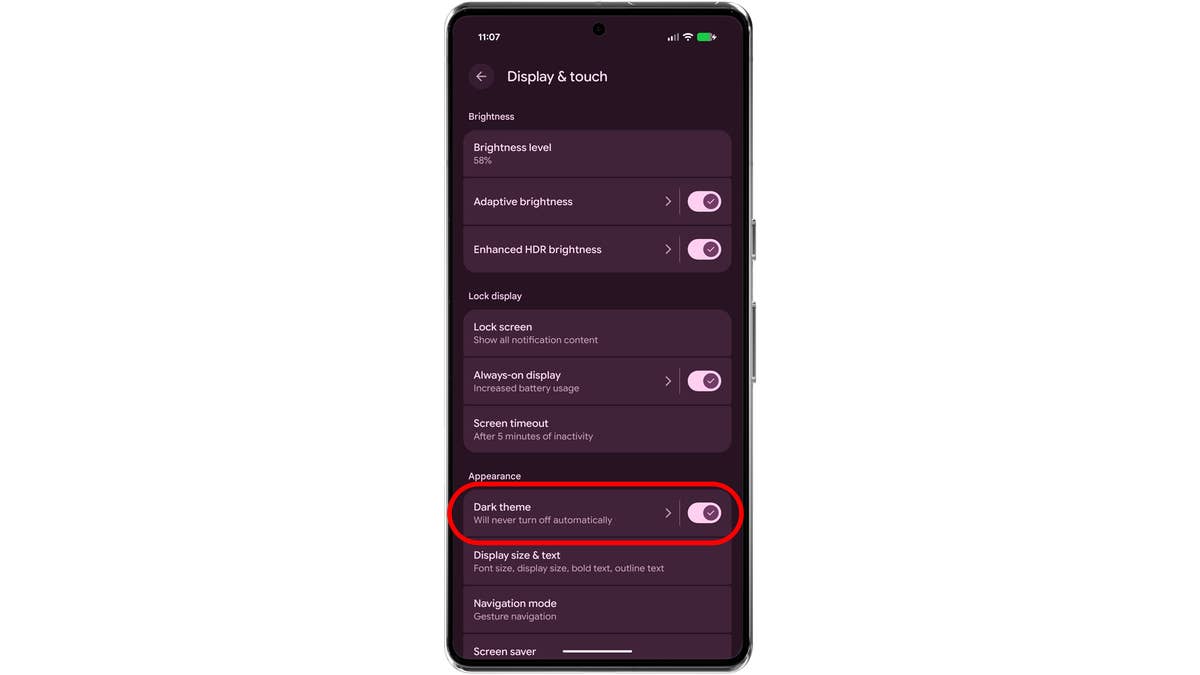
Go to Accessibility and under Appearance tap on Dark theme.
Android Tips and Tricks Use Expanded Dark Theme on Apps automatically
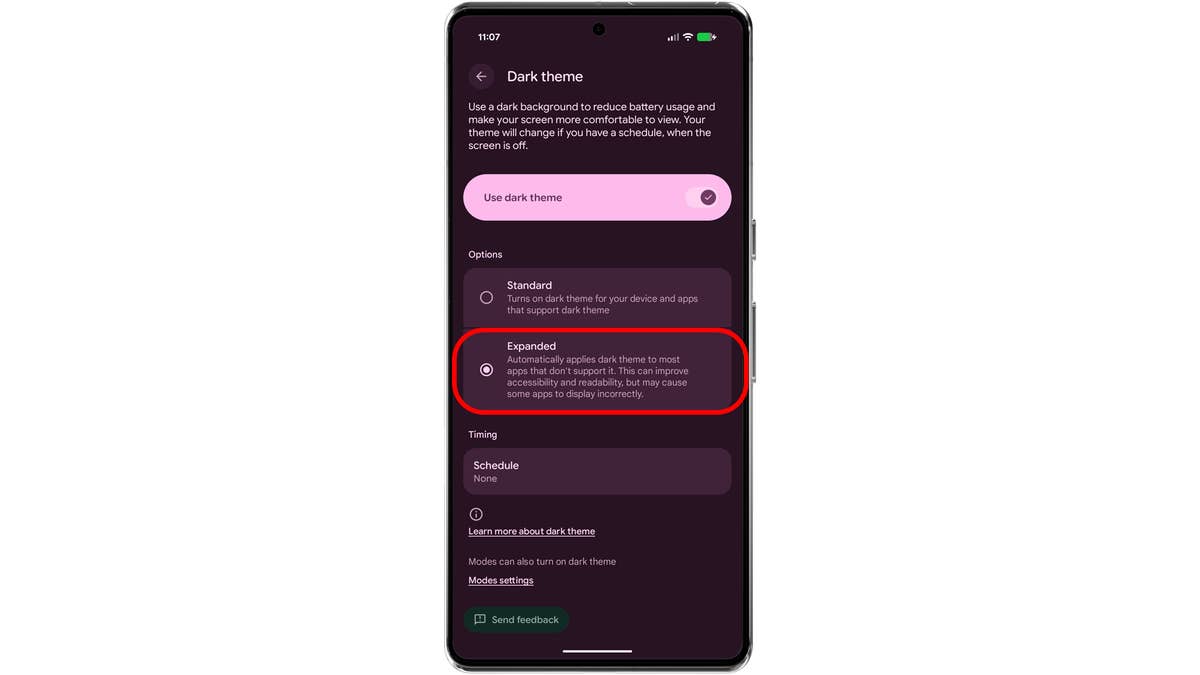
Choose Expanded Dark theme.
Android Tips and Tricks Use Expanded Dark Theme on Apps automatically
Recent Android versions default to gesture navigation instead of the traditional three-button navigation. If you prefer the older button layout, you can switch back in Settings:
- Open Settings and search for Gesture navigation.
- Or go to System > Navigation mode.
- Select Button navigation.
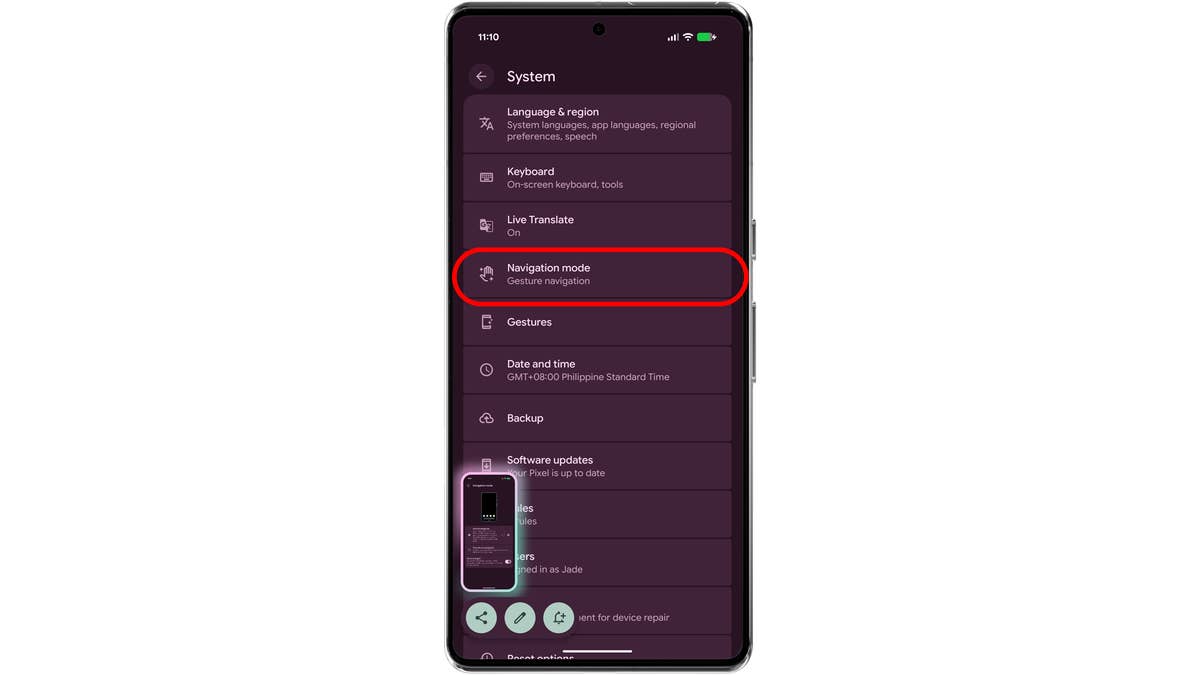
Go System > Navigation mode.
Android Navigation Mode Button Gesture
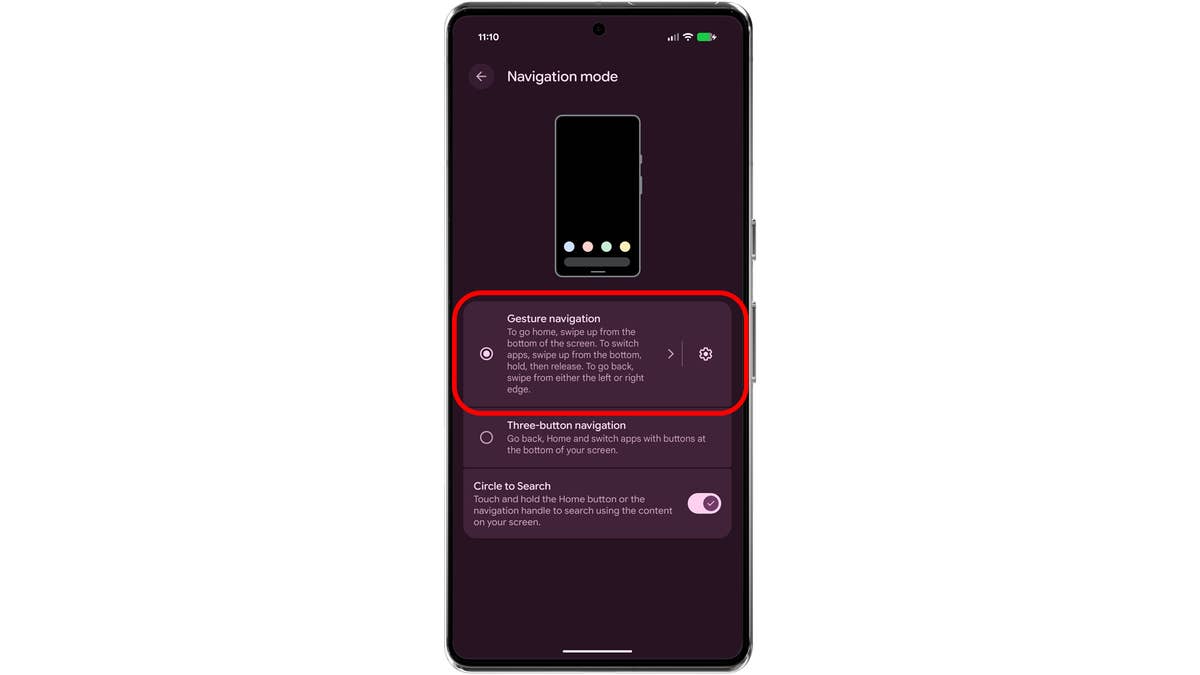
With the Gesture mode enabled, the buttons are removed.
Android Navigation Mode Button Gesture
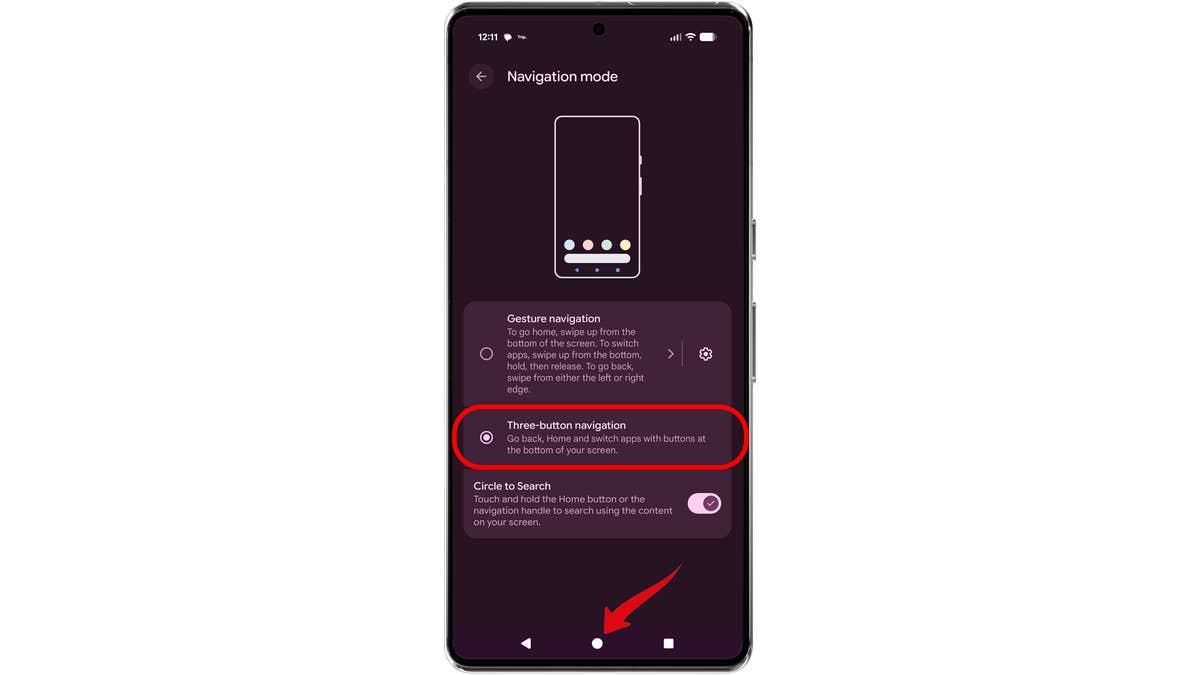
Select Button mode to bring back the navigational buttons.
Android Navigation Mode Button Gesture
Quick or Double Tap to Launch App
You can use your phone’s back as an extra shortcut to launch apps or open settings through a double-tap or quick-tap. It’s an old feature and available on many Android smartphones.
In most devices, you’ll need to enable it from the settings. In stock Android, it’s labeled as Quick Tap and located in the settings inside the Gestures section. If you have a skinned Android OS, such as One UI for Samsung or HyperOS for Xiaomi, you can look in the settings for “double-tap.”
- Go to Settings and then System.
- Tap on Gestures and then Quick Tap, or search “double tap” in settings.
- Switch on Quick Tap.
- Assign an action like launching the flashlight, a chatbot, or taking a screenshot.
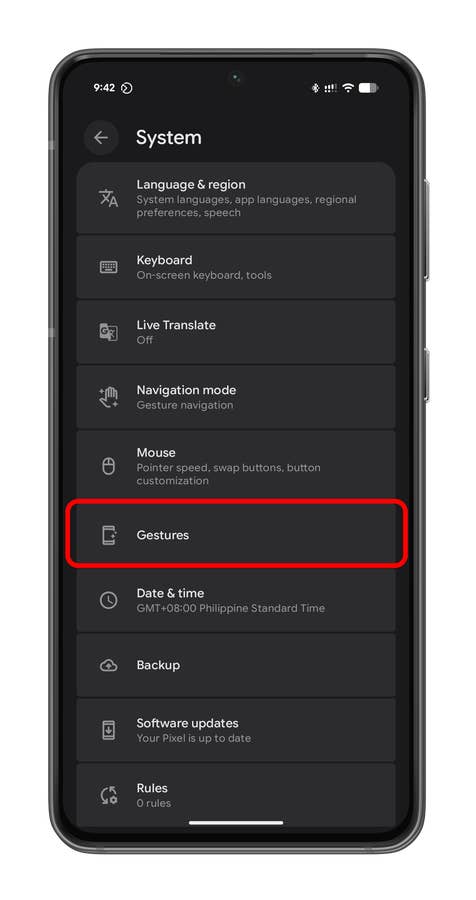
Tap on the Gestures option.
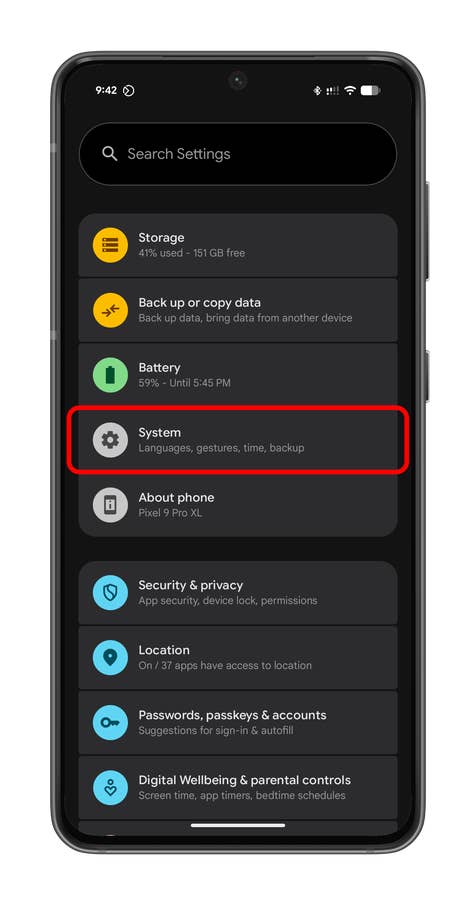
Tap on System to open options for gestures.
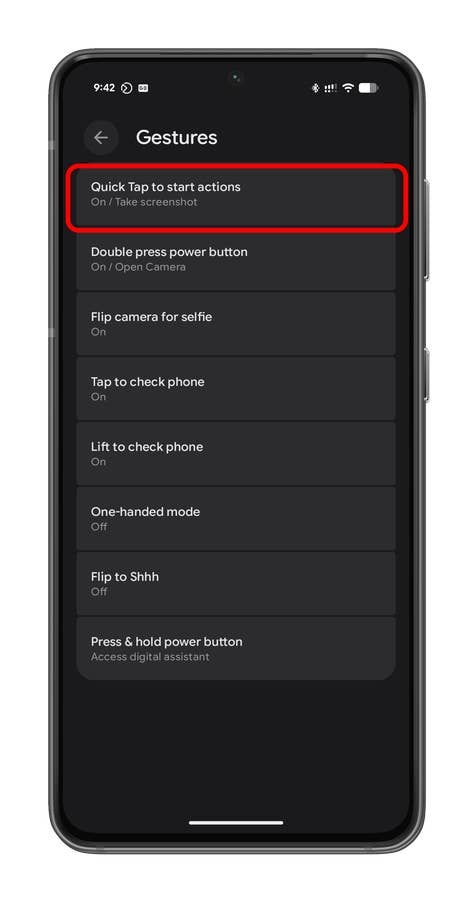
Tap on Quick tap or double tap.
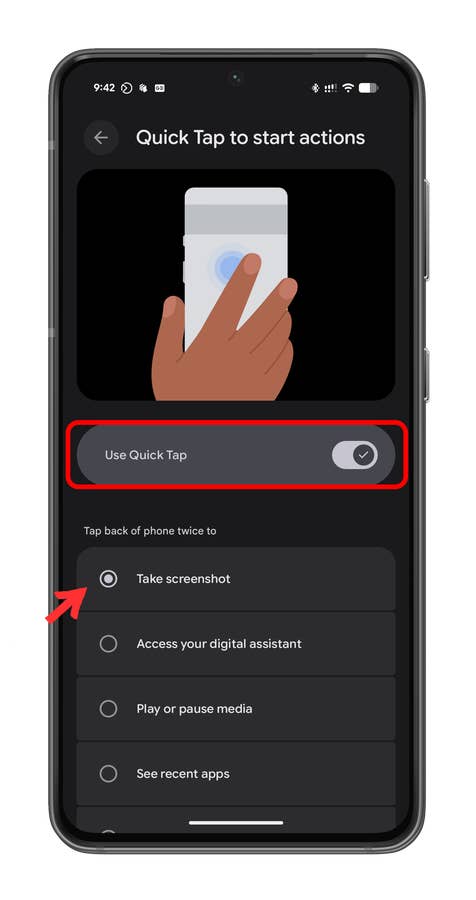
Enable Quick tap or Double tap.
Flash Notifications
One of the popular accessibility features on many Android devices is the use of flash notifications. This utilizes the camera’s LED flash or the screen as an indicator for incoming notifications like messages and calls. It’s a nifty trick if you don’t want to use the speaker for sound notifications or if your device is in silent mode, but you still want to be notified.
- Open Settings and then choose Accessibility.
- Look for Flash notifications or Screen notifications.
- Choose between Camera flash or Screen flash and toggle it to turn it on. You can enable both on some devices.
- For screen flash notifications, pick the color of the effect.
For Samsung Galaxy devices and other brands, they ship with customized screen notifications, such as having an edge lighting effect.
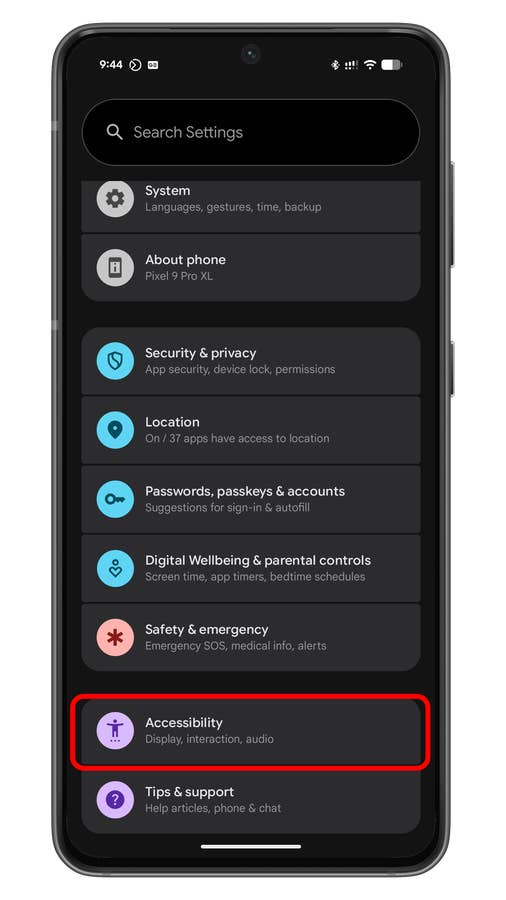
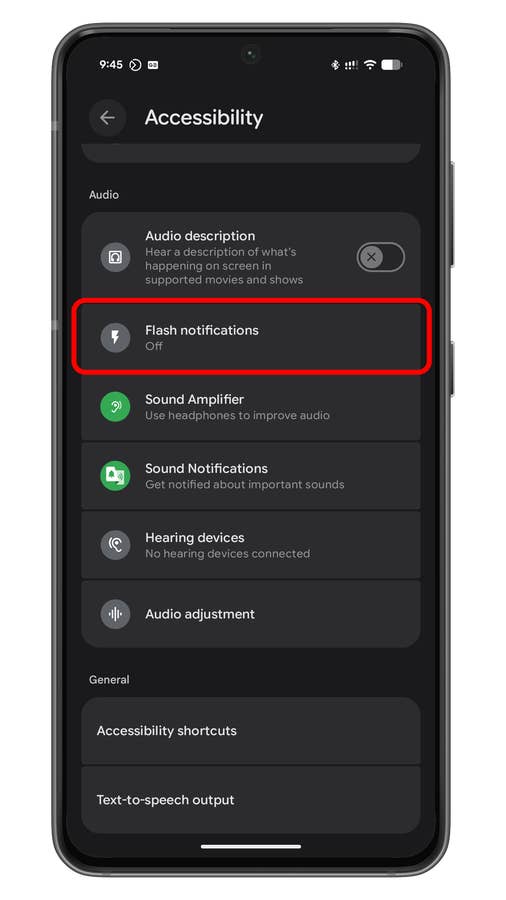
Tap on the Flash notifications option.
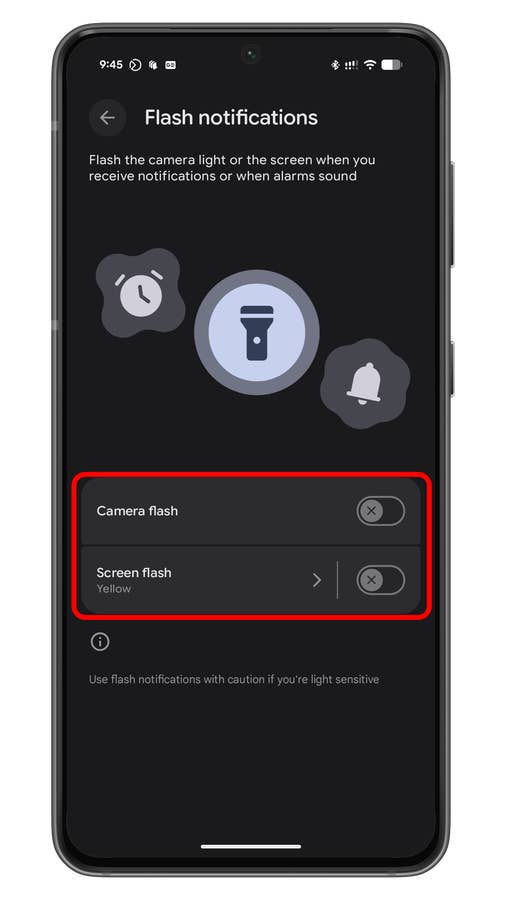
Toggle on camera LED flash or screen flash notification.
Generating a QR code when sharing Wi-Fi was added in Android 10. This enables other users to skip manually connecting to a known Wi-Fi network on your device and entering the password, saving precious time. Creating a Wi-Fi QR code and sharing it is straightforward.
- Open Wi-Fi settings in Connectivity or via quick settings.
- Connect to the Wi-Fi network you want to share and tap on the Share QR button.
- Let the other device scan the QR code using its camera.
Tip: You can also share Wi-Fi codes with iPhones.
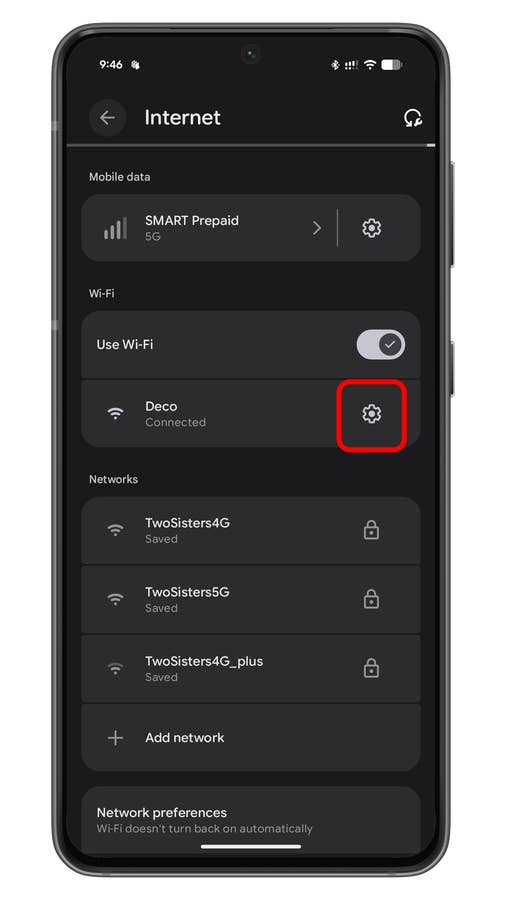
Tap on the gear icon besides the Wi-Fi name.
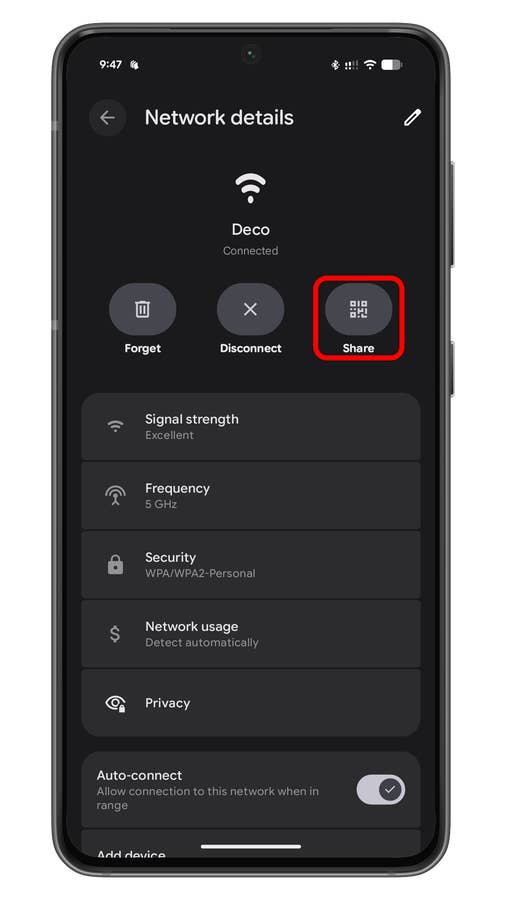
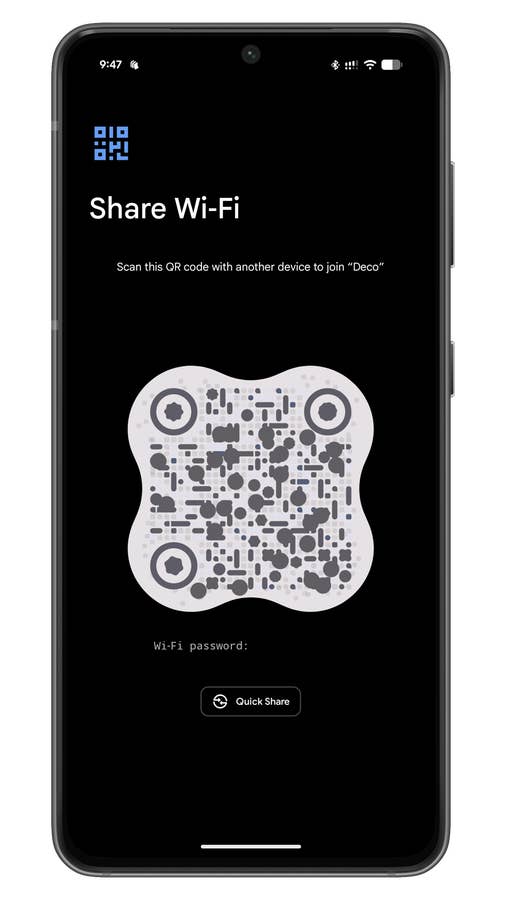
Use the camera of the other phone to connect to the Wi-Fi in the QR code.
Make Your Phone a Wi-Fi Repeater
In select skinned Android versions, it’s possible to turn your phone into a Wi-Fi extender or repeater. It’s helpful for extending the coverage of a Wi-Fi signal to other devices. Stock Android devices support this feature, while for Samsung and other devices, you might require a third-party app, as we’ve also shown in our guide. You can turn your device into a Wi-Fi extender via the hotspot feature.
- Connect to the Wi-Fi network on your main device.
- Switch on your hotspot by tapping the shortcut in connectivity or quick settings.
- Connect other devices to the hotspot connection.
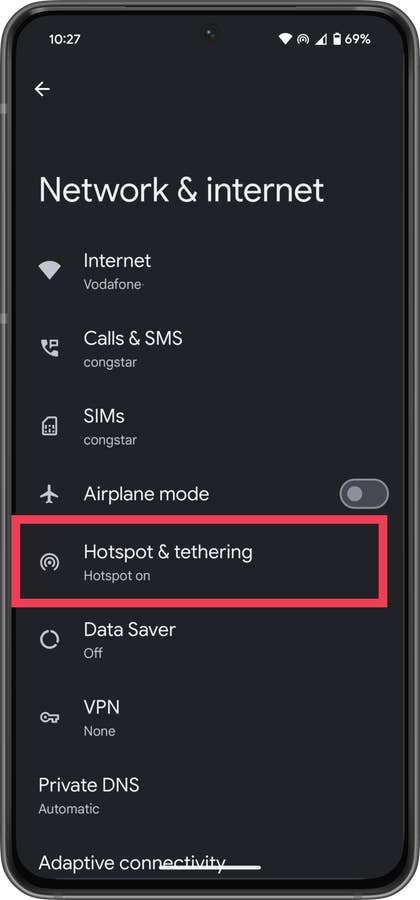
Choose ‘Hotspot u0026 tethering’.
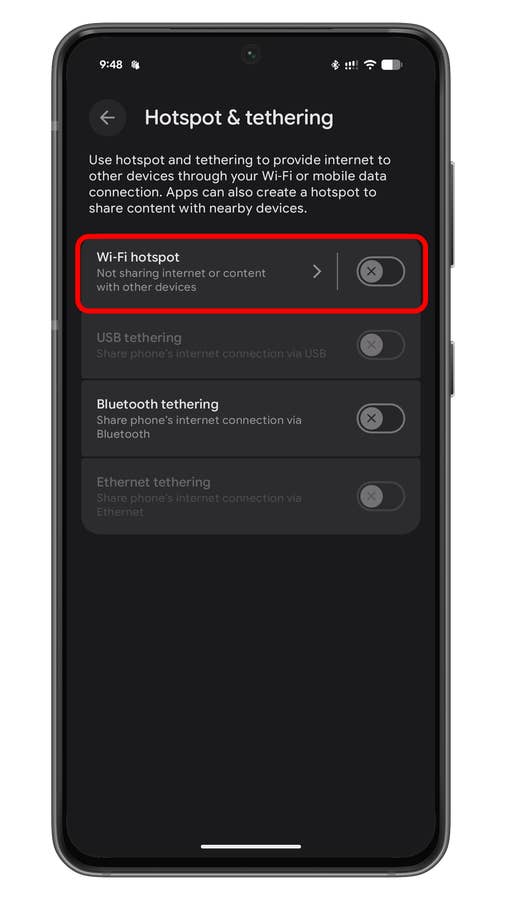
Hide Device Name from Public Wi-Fi
Android has long enabled hiding your MAC address when connecting to a WLAN or Wi-Fi to ensure you’re not being tracked. In Android 15, Google leveled up the privacy feature with a toggle to switch off sending your device name to the network, making it anonymous. It can be enabled in the same privacy settings as MAC randomization.
- Go to Internet settings in Network & Internet.
- Tap on the gear icon beside the connected Wi-Fi.
- Scroll down and tap Privacy.
- Toggle off Send device name.
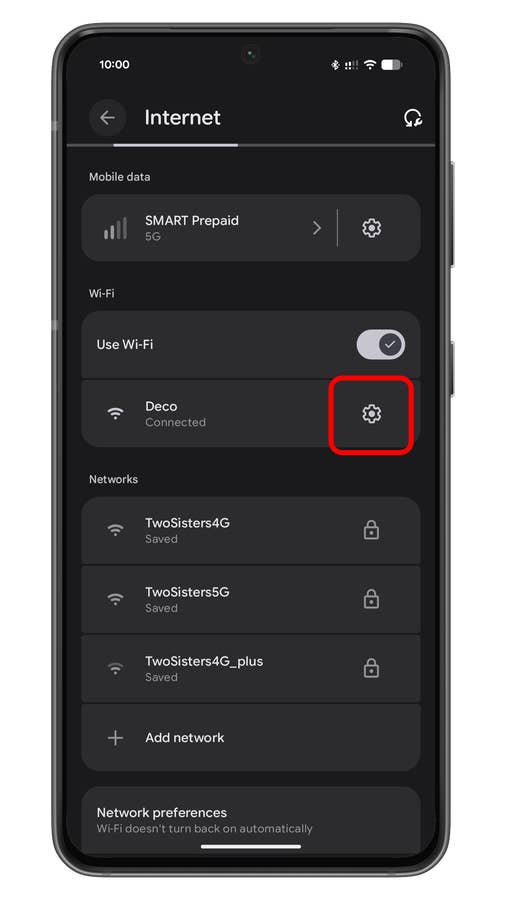
Tap on the gear icon besides the Wi-Fi name.
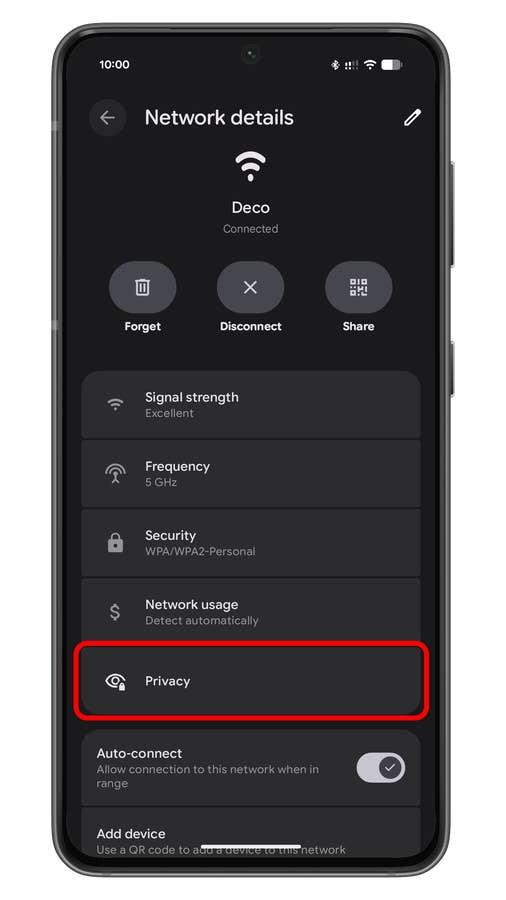
Tap on the privacy button.
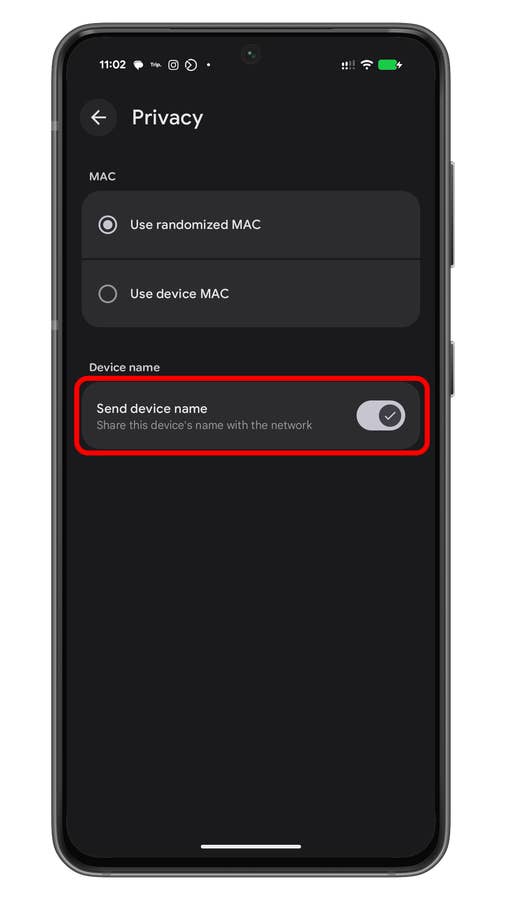
Disable device name sharing.
Auto-Lock Device When It Gets Lost or Stolen
One of the most important new security features in Android is anti-theft protection. It’s a suite of security tools designed to boost device and data protection in case of theft or a lost phone. It debuted with Android 15 but is also available in older versions of Android via a Play Services update.
Depending on the phone, the set of security tools offers core features like theft detection lock, offline device lock, and remote lock, in addition to identity check. It’s switched off by default, so you need to manually enable it from the settings. Follow the step-by-step guide below.
- Open settings, then navigate to Security & privacy.
- Choose Device unlock.
- Tap on Theft protection.
- Enable the tools you want to use.
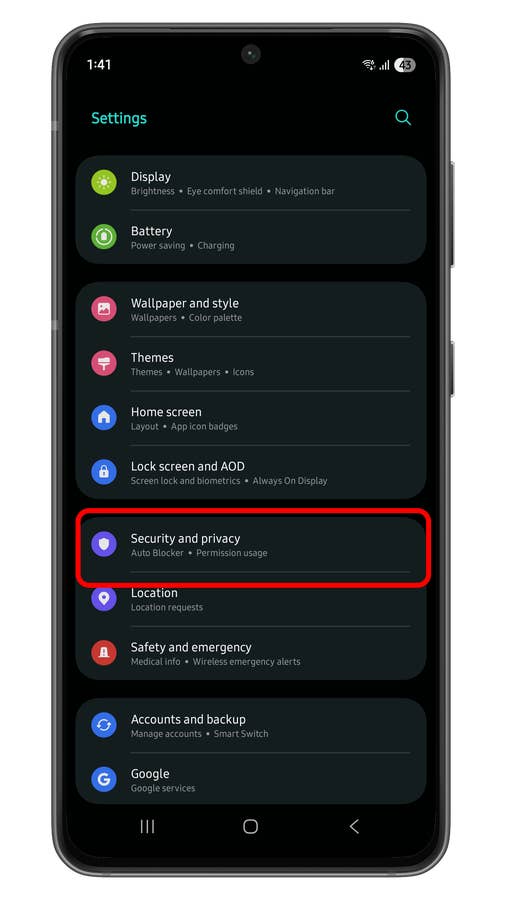
Tap on the Security and privacy option.
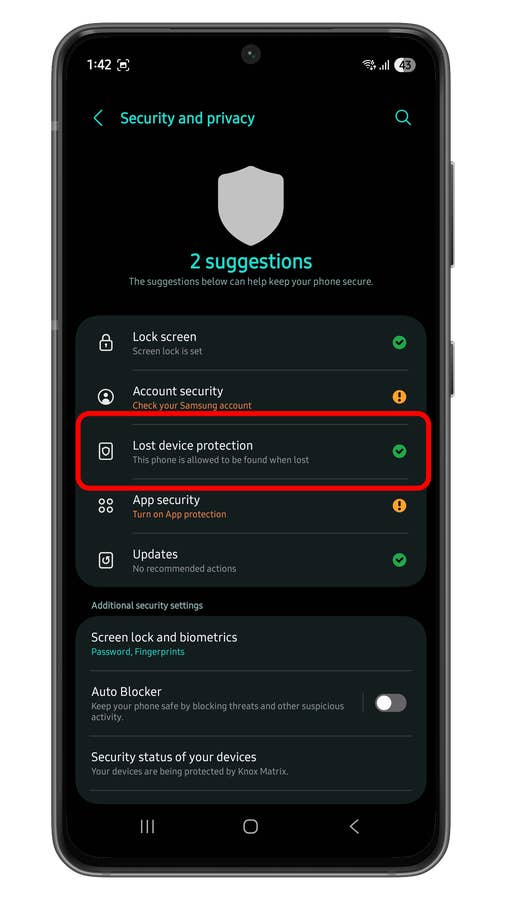
Select the Device protection option.
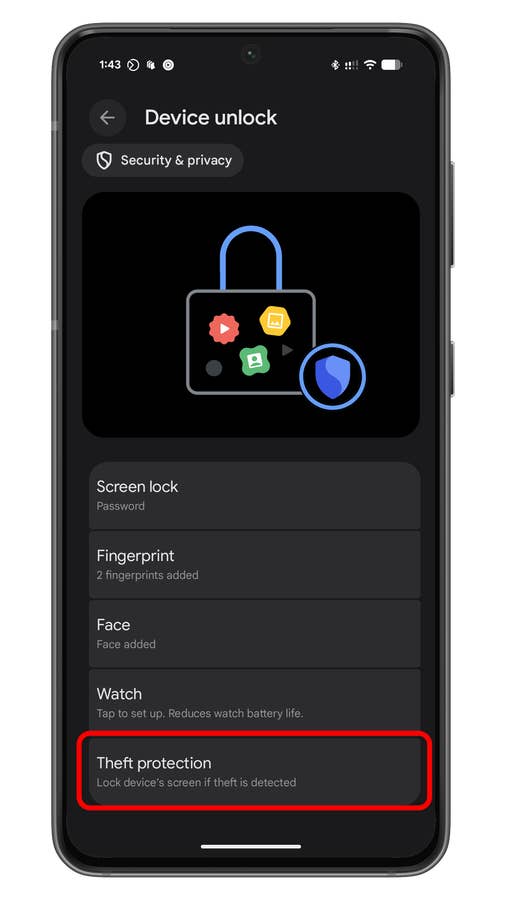
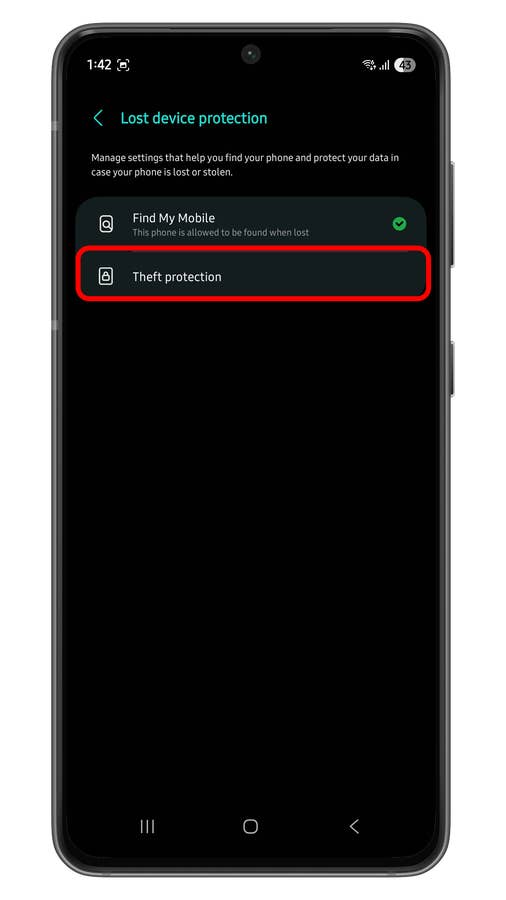
Enable theft protection toggles.
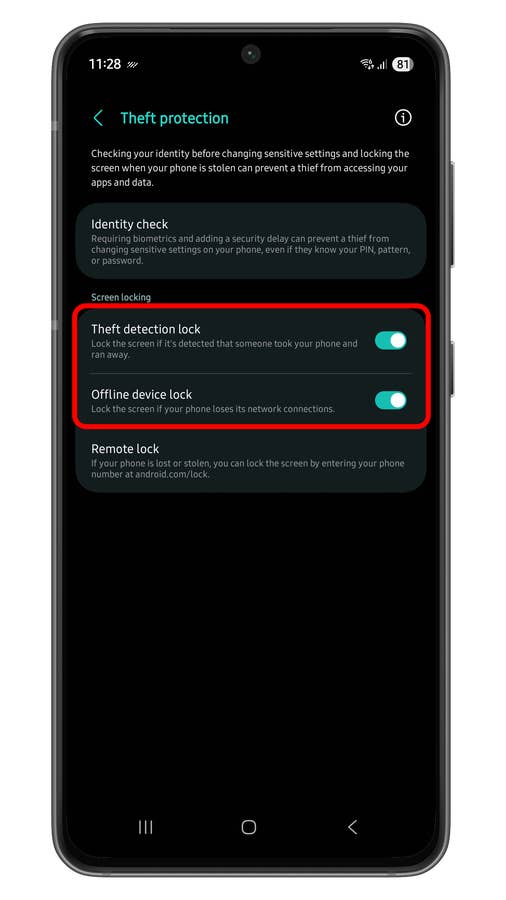
Enable theft detection lock and offline device lock to start using.
Turn Your Phone Into a Webcam
A long-requested feature is the ability to turn your Android phone into a webcam for your computer or laptop natively. This support arrived with Android 14 and was improved to include an HD version in Android 15. Depending on the manufacturer’s implementation, turning your phone into a webcam is simple. Learn the steps below.
- Connect your phone to a laptop or PC.
- Tap on the USB dialog box on your phone.
- Select Webcam.
- In the webcam dialog, expand it to open the camera view.
- Tap on HD and confirm.
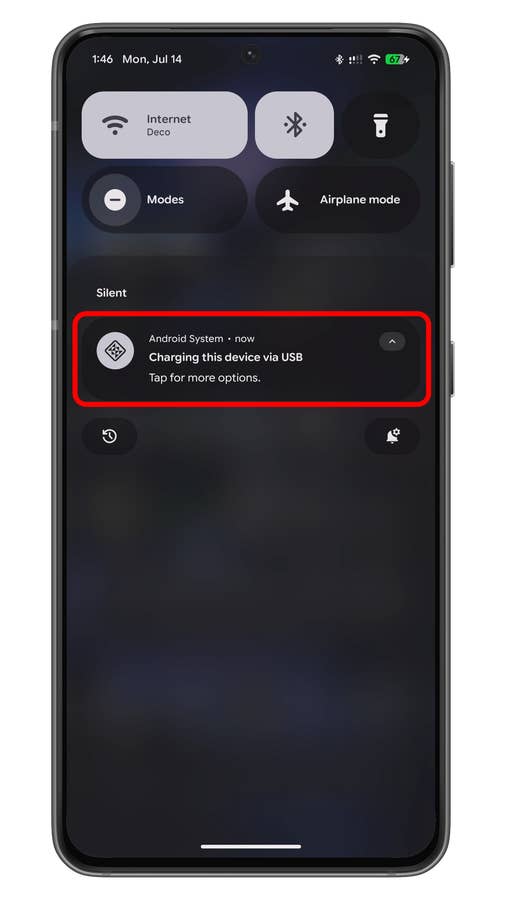
Tap on the notification sheet to open the menu.
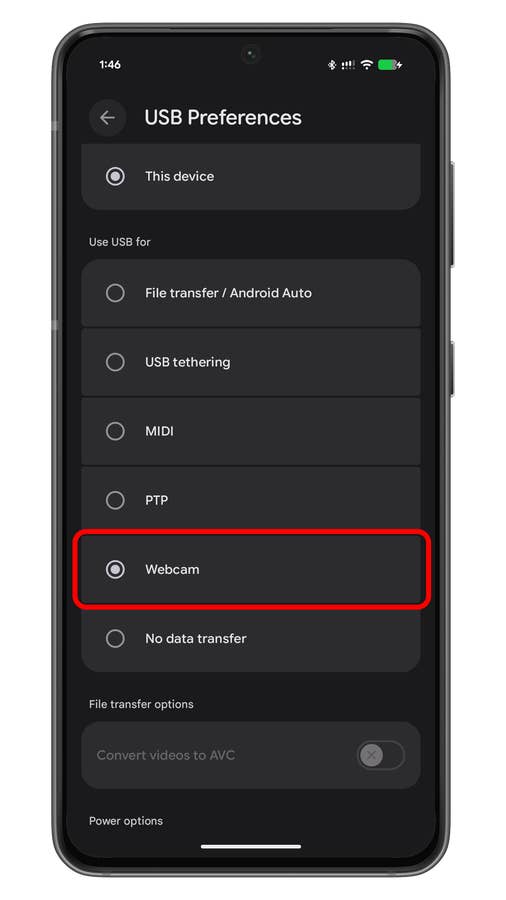
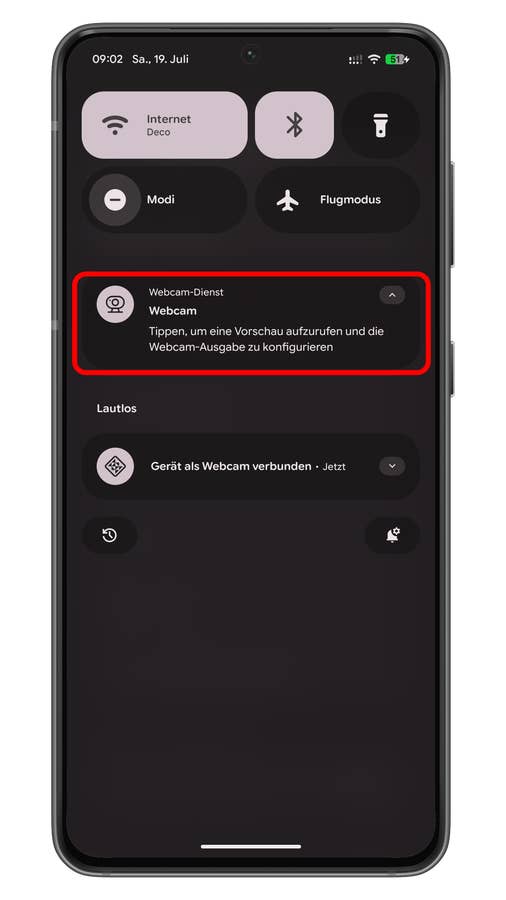
Tap on the webcam pop-up to open the menu.
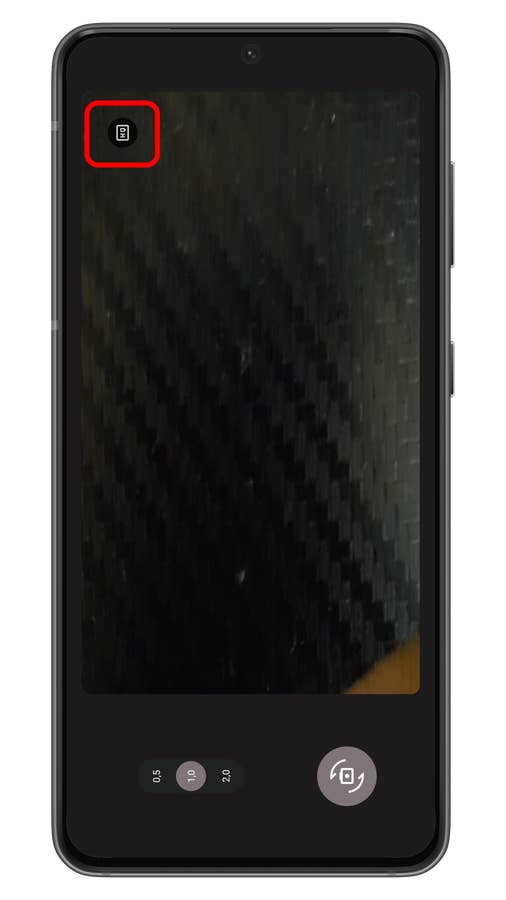
Tap on HQ or HD to enable high-quality when using your phone as a webcam.
Hide Apps via Private Space
Before Private Space, there was no direct way to hide apps in bulk, although some OEMs like Samsung had their own features for this. Now, in Android 15, it’s easier and more secure to keep your apps in a private folder or vault. It even has a more robust security method, as you can keep the data in the apps hidden from your settings and system with a separate Google account.
For skinned Android versions, they have their own version of features to hide apps, such as Secure Folder in One UI.
If your device is running on Android 15, here’s how to set up and use it on your Android.
- Go to Settings and tap Security & privacy.
- Select Private Space.
- Tap Set up and finish connecting your account.
- Manage the private space by going to the bottom of the app menu.
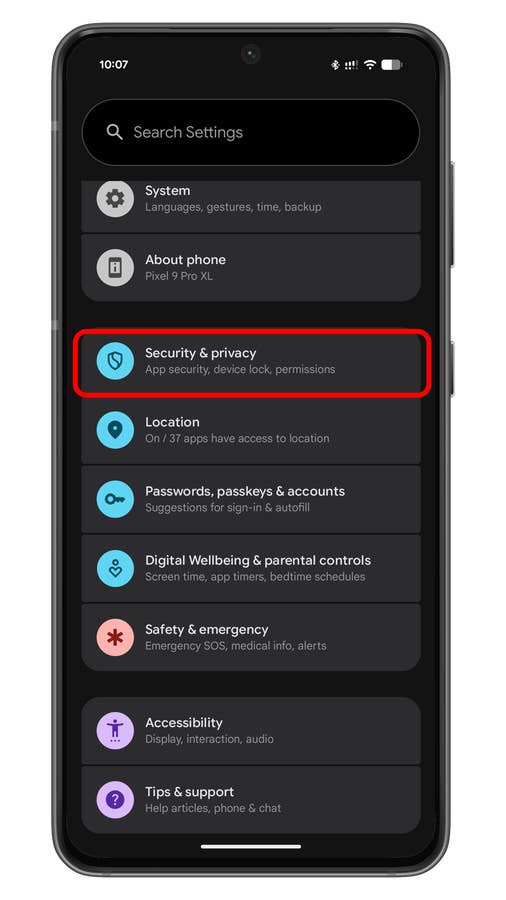
Access more settings by tapping on the Security and privacy section.
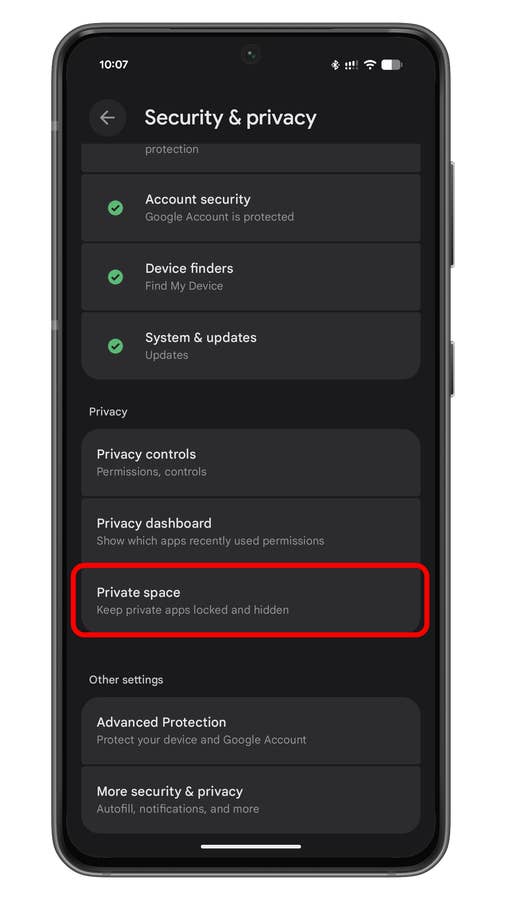
Tap on the Security and privacy option.
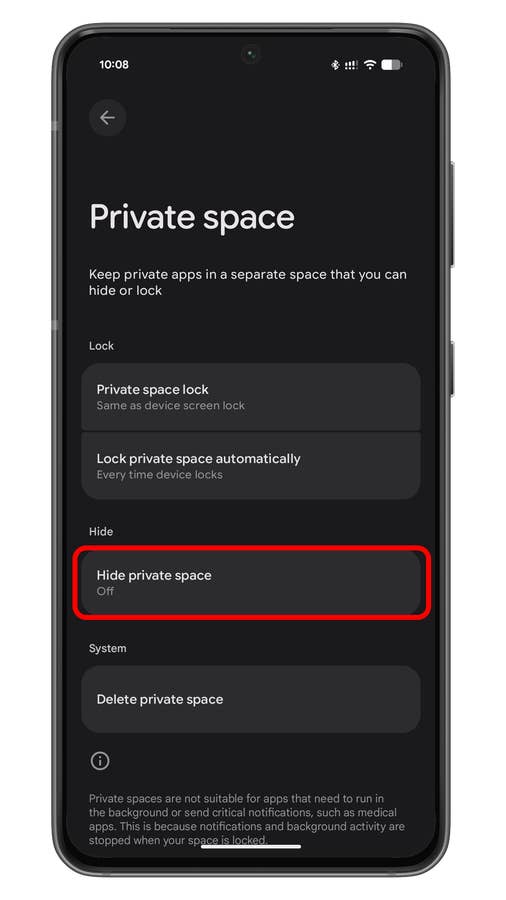
Tap on the Private space option to set it up.
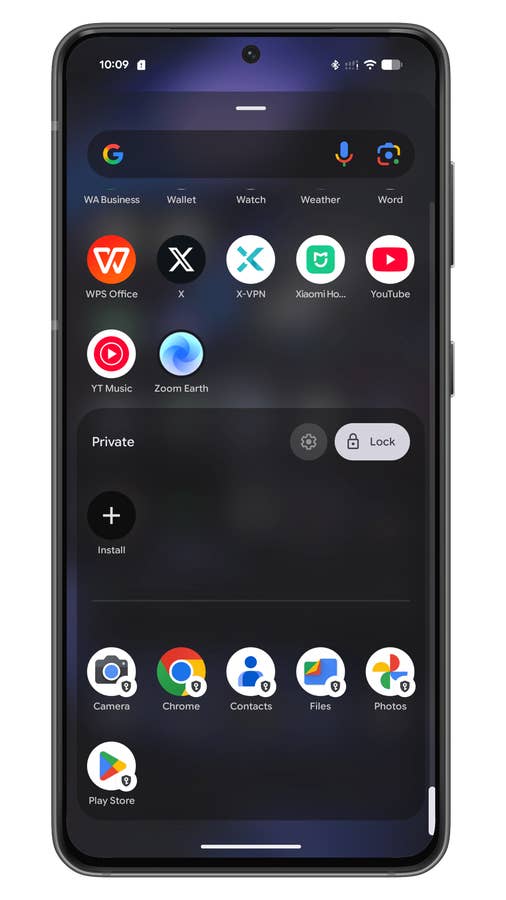
You can access the hidden apps in private space from the app menu.
Amplify Volume Level with Headphones
Android’s sound amplifier is a popular accessibility tool, but more than for users with hearing challenges, the feature is also useful for regular listeners when they want to boost the sound and volume level when listening to headphones via wired or wireless Bluetooth.
The feature is pre-installed in Pixel 3 and later models like the Pixel 9, and also found in some devices running on stock Android. If the feature is not available, you can download the app version from the Play Store.
In order to set up and use the sound amplifier, you’ll need to connect the headphones and then set your desired audio settings. For Pixel devices, it offers noise reduction to block outside or ambient noise.
- Connect your headphones (wired or Bluetooth).
- Go to Settings > Accessibility > Sound Amplifier.
- Adjust settings like noise reduction, boost, and fine-tuning.
- Save your changes.
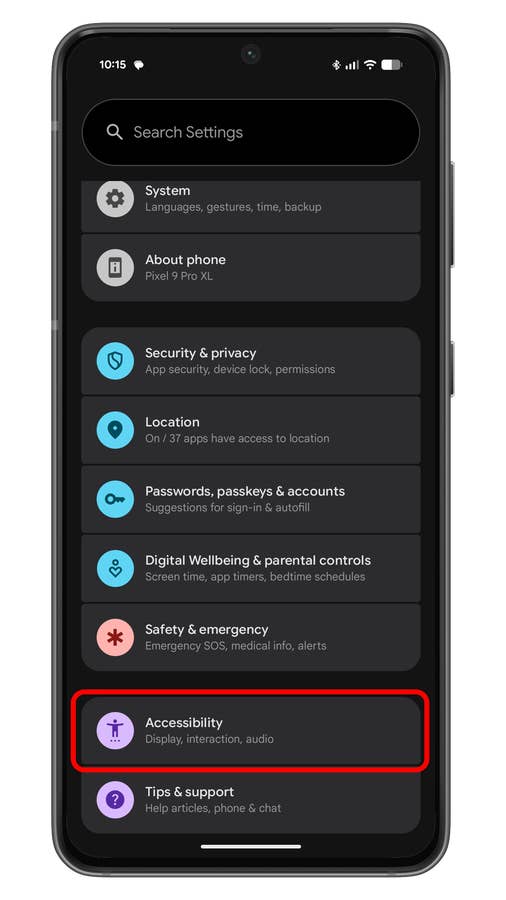
Tap on the Accessibility option.
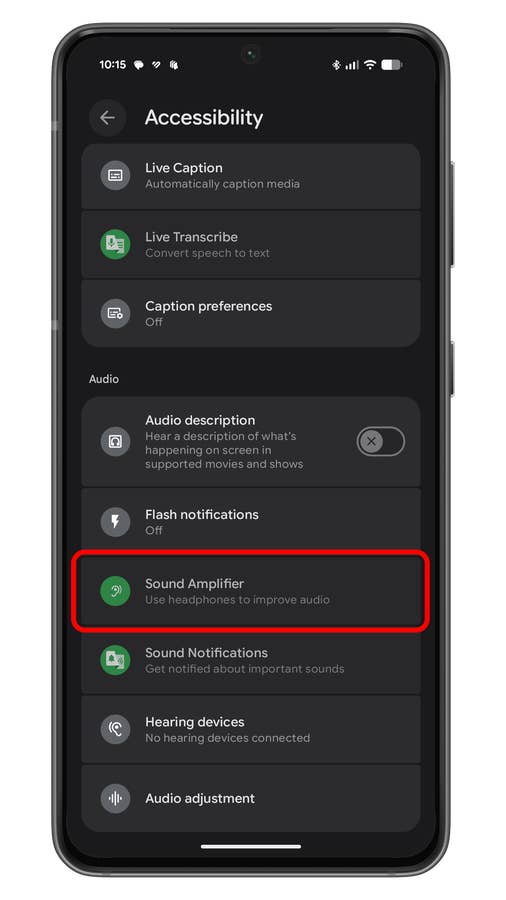
Scroll down and look for the Sound amplifier option.
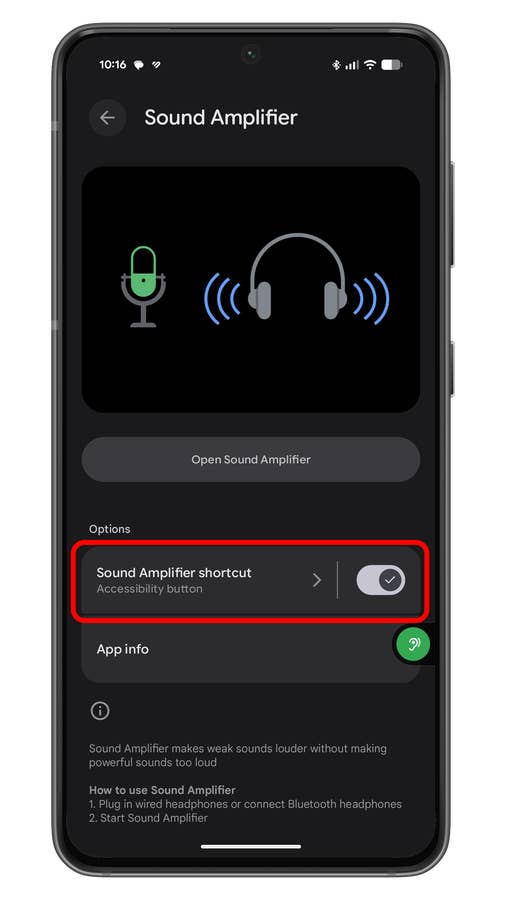
Once you have connected the headphones, you can enable the sound amplifier feature.
Restore Deleted Notifications
One of the hidden gems that many users are not aware of is the ability to view or restore dismissed or deleted notifications through notification history. Before you start accessing dismissed notifications, you’ll need to enable them from the settings. Read the step-by-step guide below.
- Open Settings on your Android device.
- Go to Notifications.
- Tap Notification history.
- Toggle on the button.
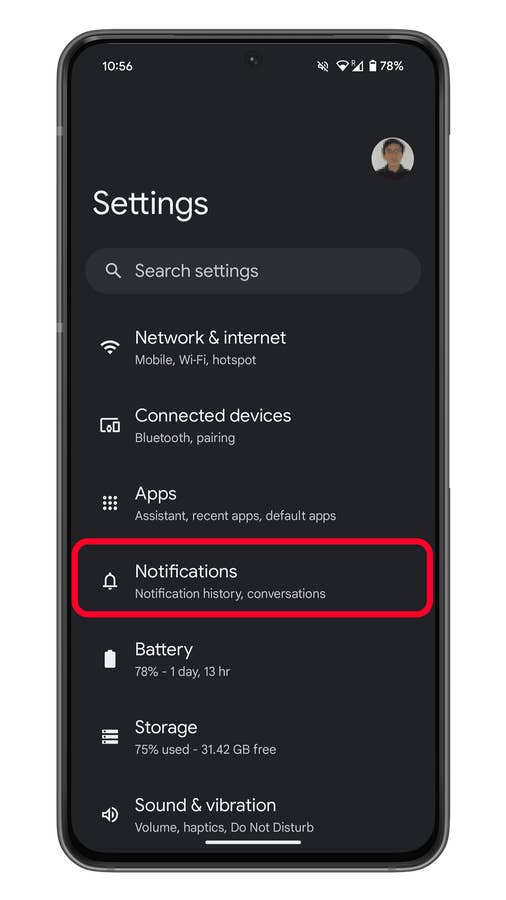
Go to Settings and open Notifications
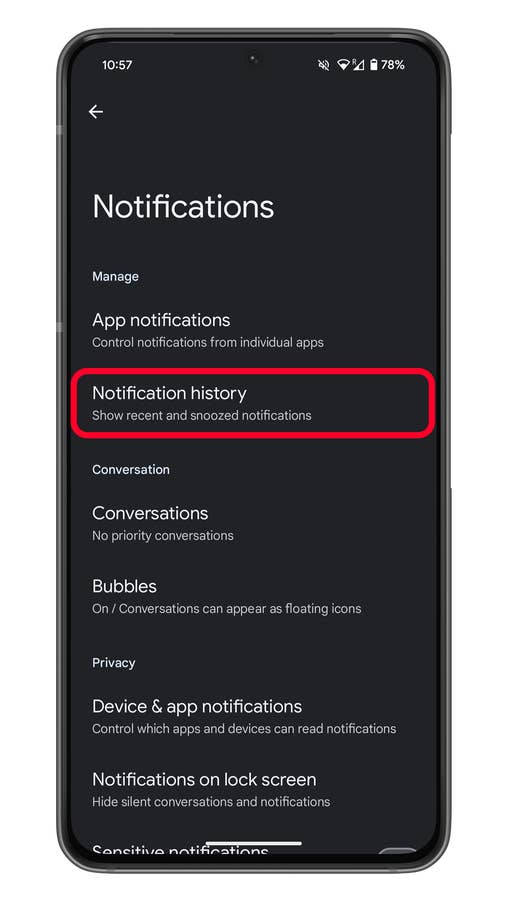
Choose Notification history
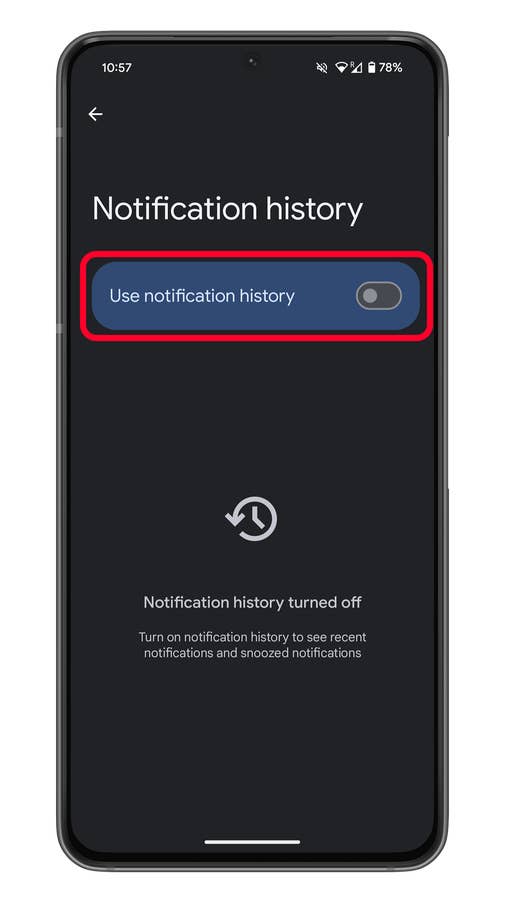
Toggle on Notification history if it is disabled
Free Up Memory via App Archive
If your device is short on memory, Android has a clever way to free up space consumed by inactive apps through App Archive, which is the equivalent of a soft uninstall. The tool removes a large chunk of an app’s data, like cache, but keeps your profile and settings so they will be available once you need to install them again.
While Google Play Store has an auto-archive feature, the new App Archive tool added in Android 15 allows you to manually choose an app to archive.
- On your home screen or app menu, long-press on the app, then tap App info.
- Tap on the Archive button.
- To restore, find the app icon and tap on it, and wait for it to install again.
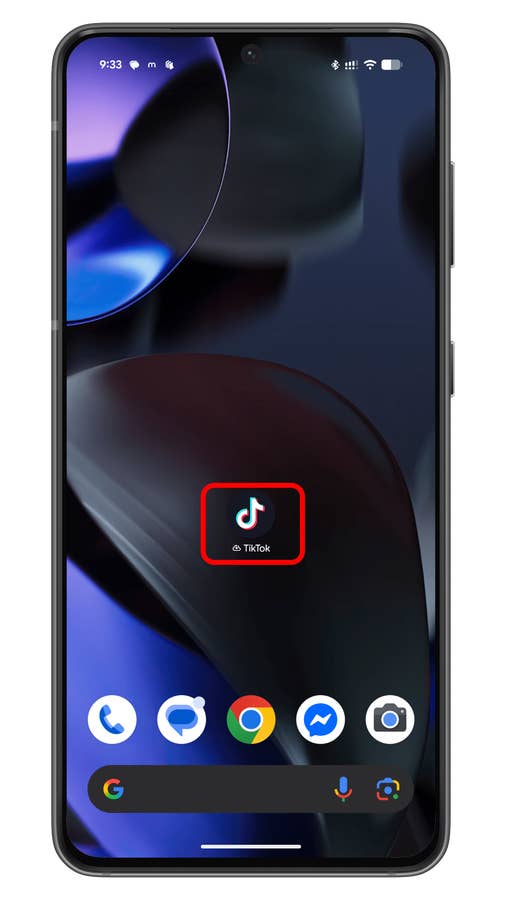
You can download the app and restore the data by tapping on it in the home screen.
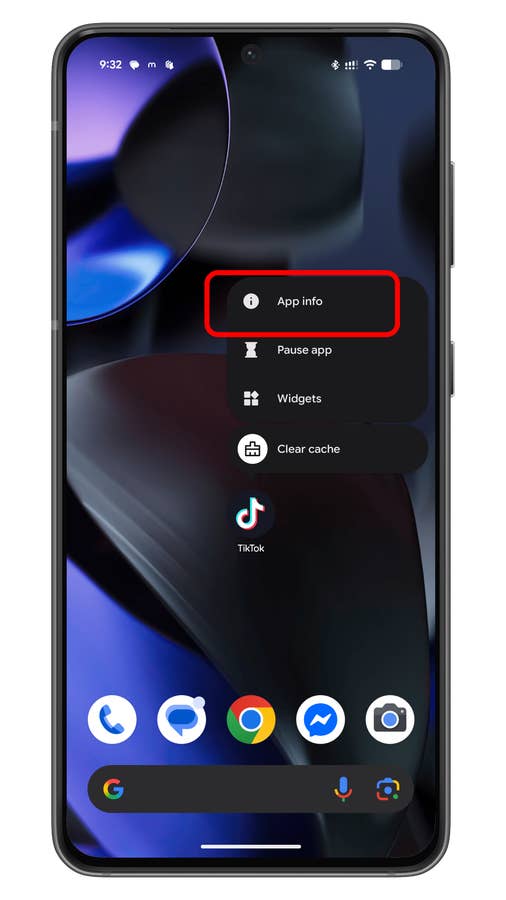
Tap on the App info to see the app archive option.
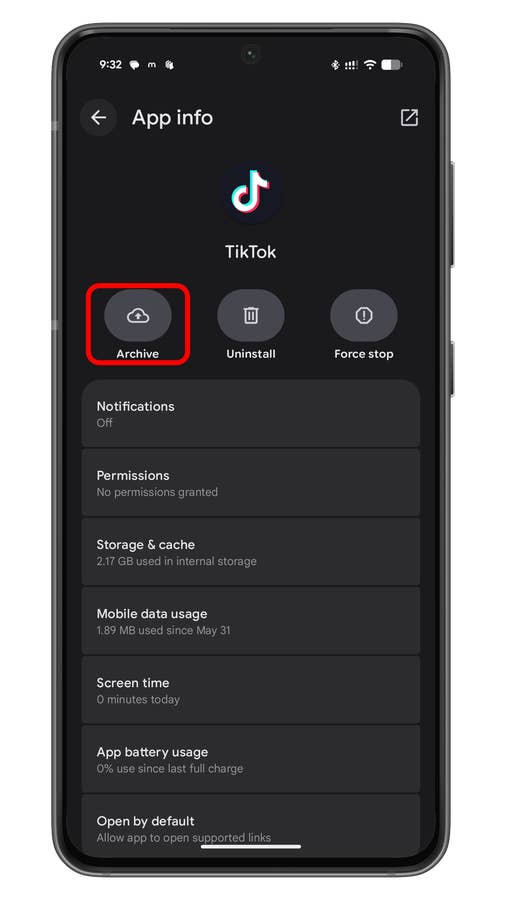
Tap on Archive to soft uninstall the app.
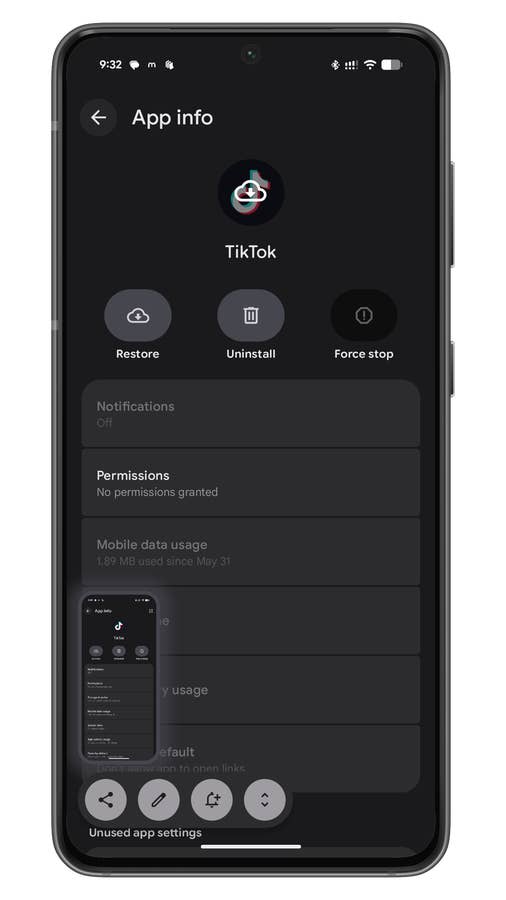
You can download again the archived app with your data like profile and settings restored.
Add a User or Guest
One of the oldest tricks in Android is multiple user support. This lets you add another user or guest with their own set of apps and settings on the same Android device. Android’s guest mode is not available in all Android skins, such as in One UI, though it is supported in the Galaxy tablets, while Xiaomi devices have a similar feature called Second space.
If your device comes with guest mode, it can be enabled in the system section.
- Open Settings.
- Go to System.
- Scroll down and look for Users.
- Select if you want to add a regular user or a guest.
- Continue to set up.
Once a guest or user account is in use, you can easily switch back to the owner’s account from the notification panel.
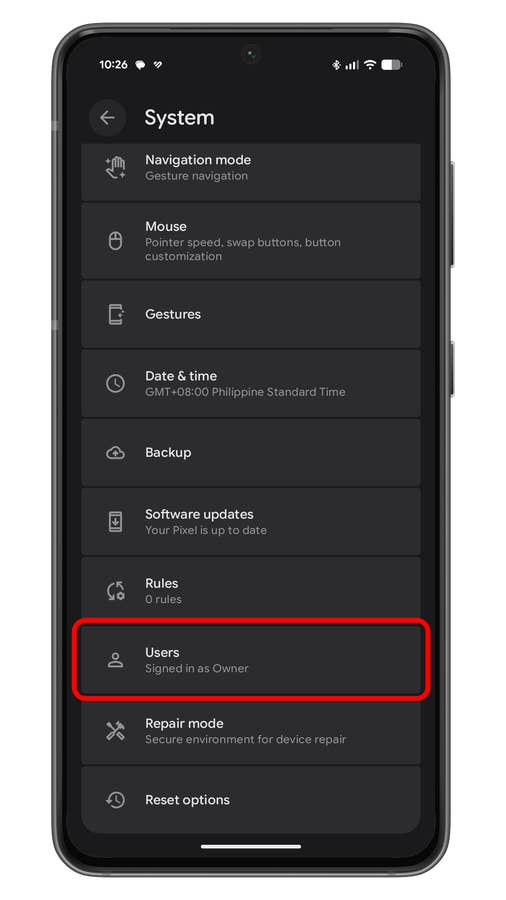
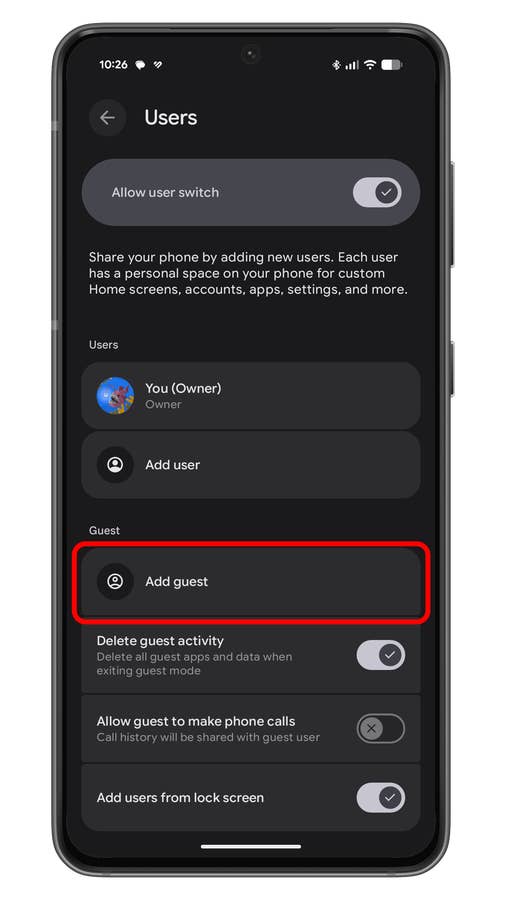
Tap on Add guest to start setting up a guest account.
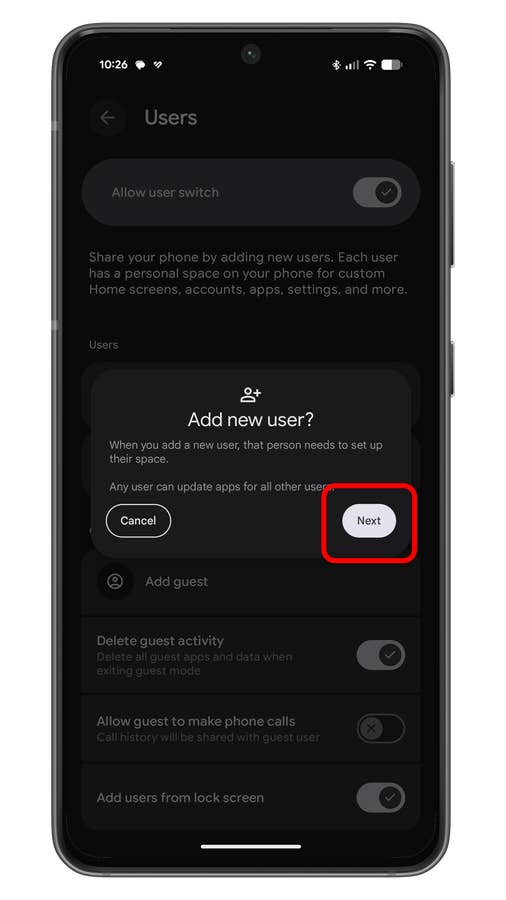
Tap on Next to continue the setup.
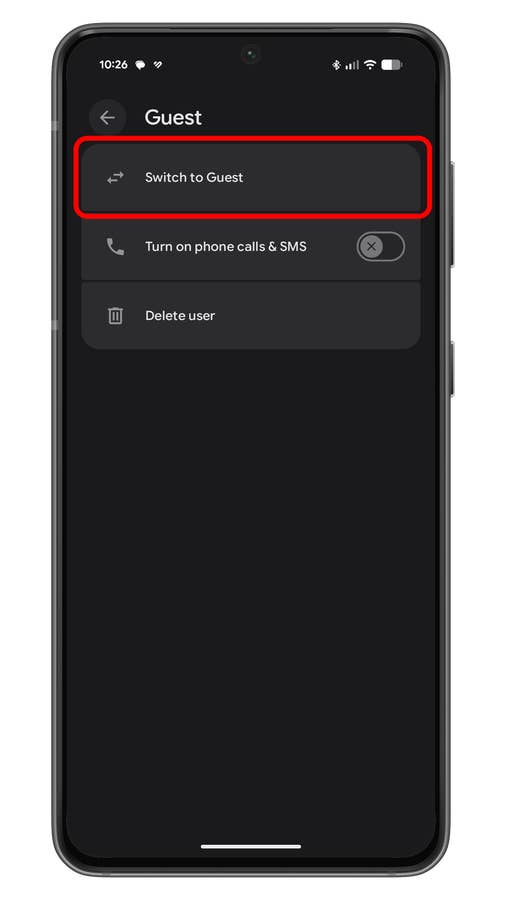
After Guest or User account creation, you can switch to it to start using.
Set Language Per App
Android, as a mobile operating system, has extensive language support. Google also upgraded this in Android 13 by adding a per-app language tool that lets you assign a different language to each app, different from the system’s set language. It works on select apps like social media, improving usability for many users.
- Open Settings and then go to System.
- Select Language & region.
- Tap on App languages.
- Tap on the app you want to assign a language.
- Choose the language.
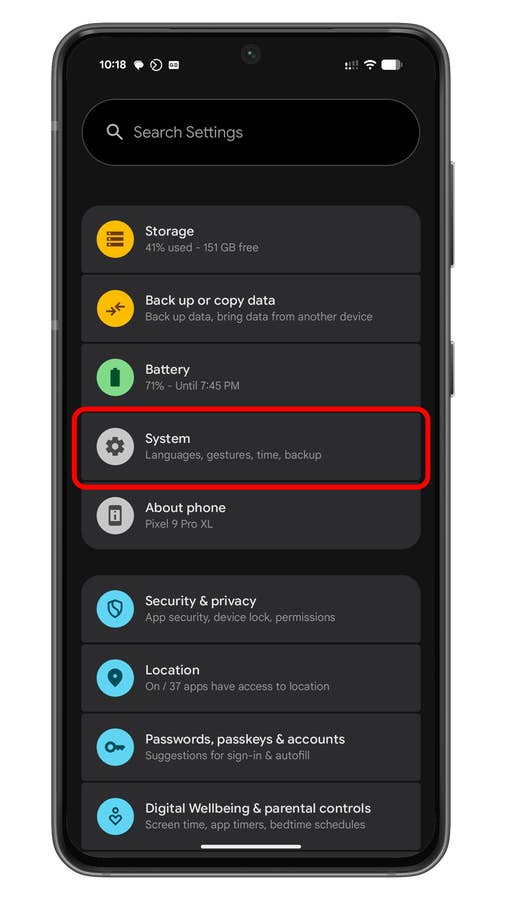
Tap on System to open the language settings.
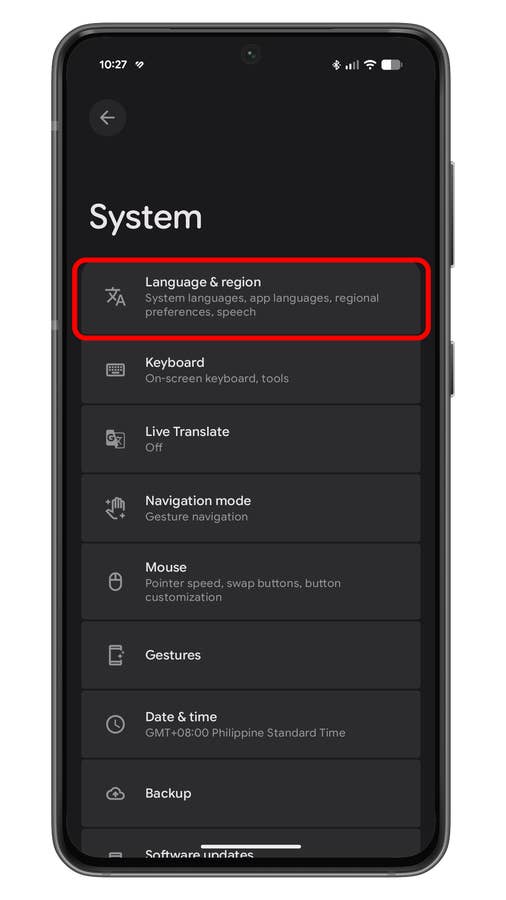
Tap Language and region options.
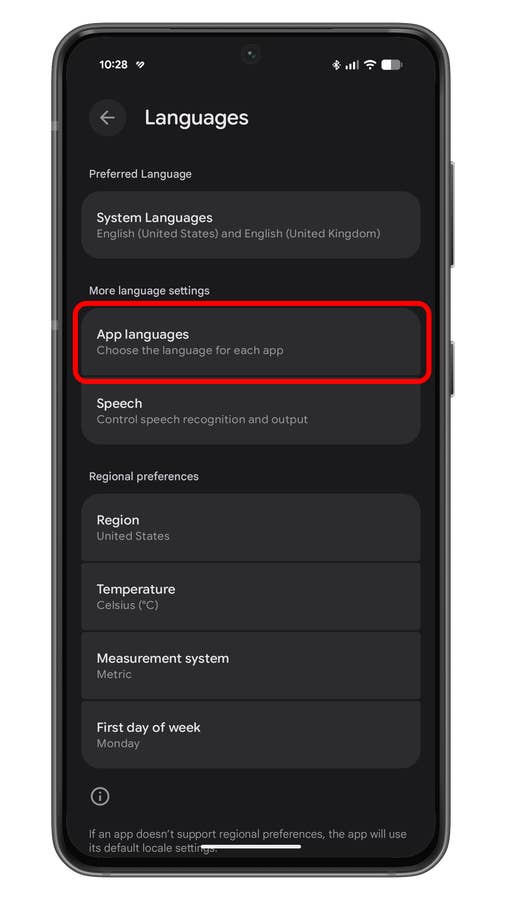
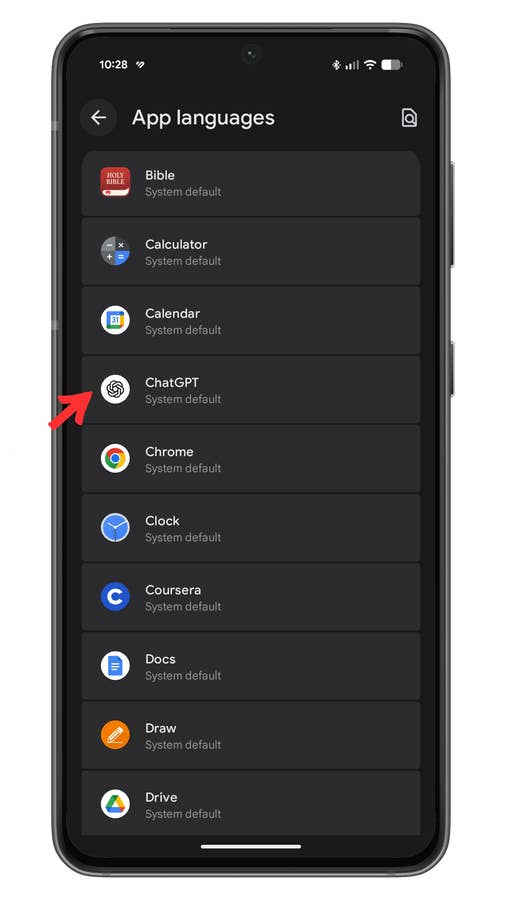
Select the app you want to change the default language.
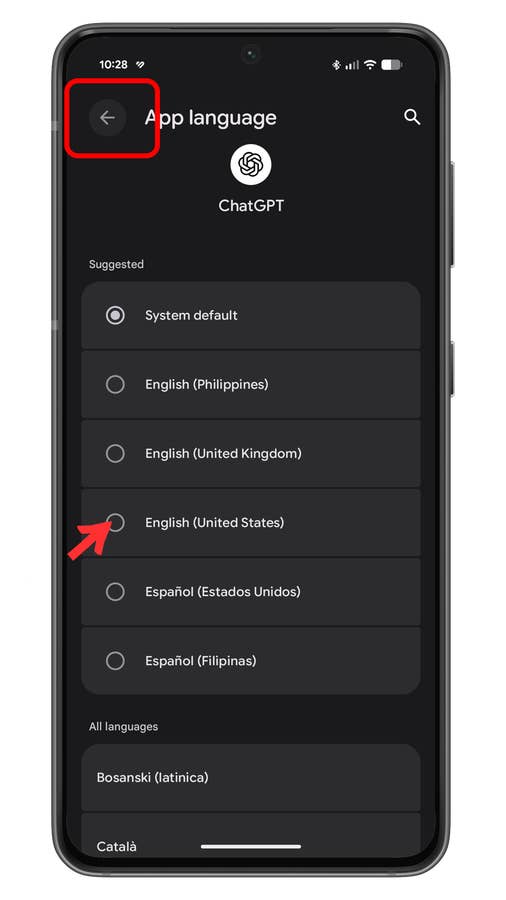
Choose the language to set.
Use Split Screen to Multitask
A big advantage of Android over iOS is the classic ability to run two apps side-by-side. It has existed in the operating system since the early days and has been improved over the years. Using it is quite simple and even offers the option to save app pairs in other skinned Android versions.
- Launch recent apps or tap on the recent button.
- Tap the app icon to open the menu.
- Tap Split screen.
- Select the app to pair.
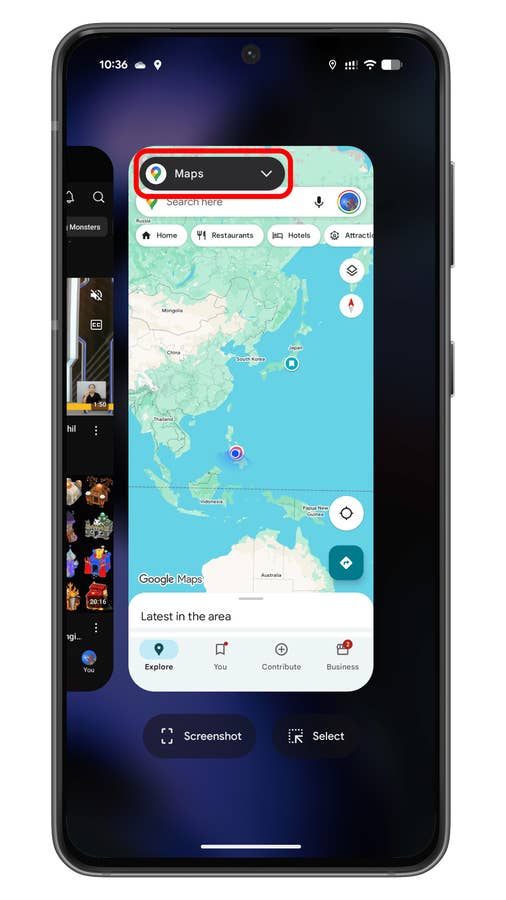
Tap on the app menu to see more options.
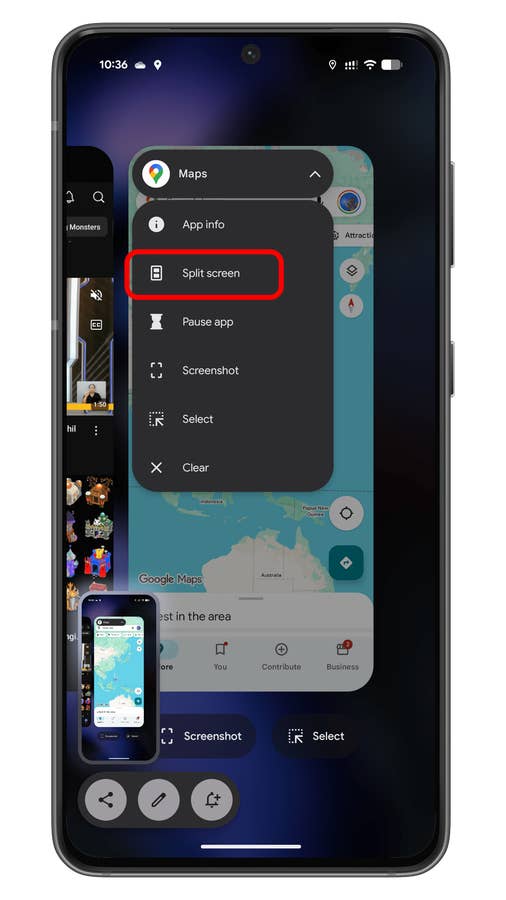
Tap on the Split screen button to initiate split screen.
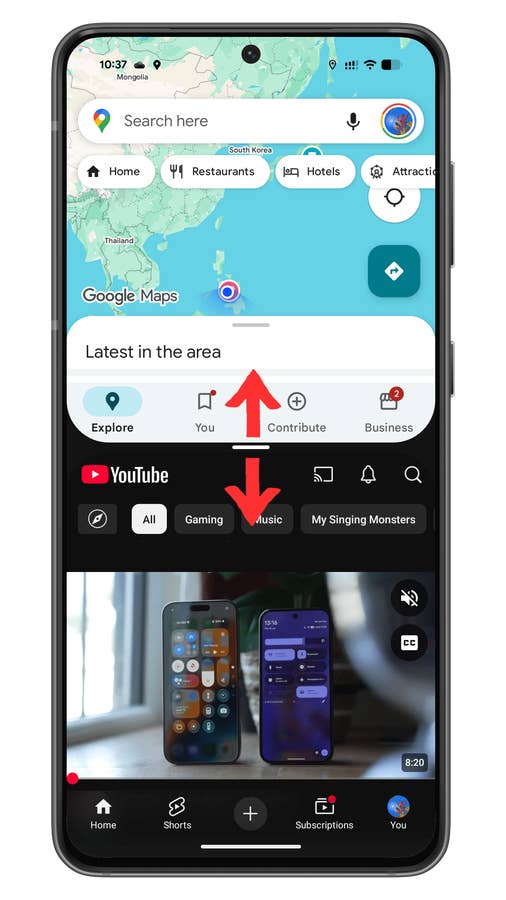
You can adjust the window size by dragging the slider up and down.
Activate Developer Options for More Features
Many features and settings in Android are tucked inside the Developer options. These are designed for testing purposes, but anyone knowledgeable enough can also use these tools for their benefit or to improve their device.
Keep in mind that it’s not recommended for everyone and that certain apps might not work when Developer options is enabled. If you’re aware of the risk, you can proceed below on how to activate it.
- Go to Settings.
- Open About phone.
- Scroll down and look for the build number. (Depending on your device, the location of this is in the software page).
- Tap Build number five times or longer until Developer options is activated.
- Access the Developer options in the System page.
- You can disable the Developer options in the system settings.
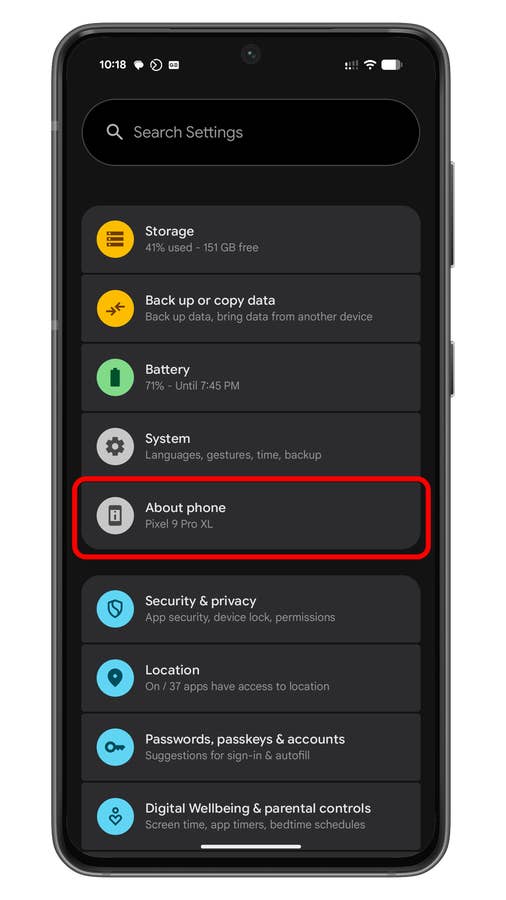
Tap on About phone to access the build number.
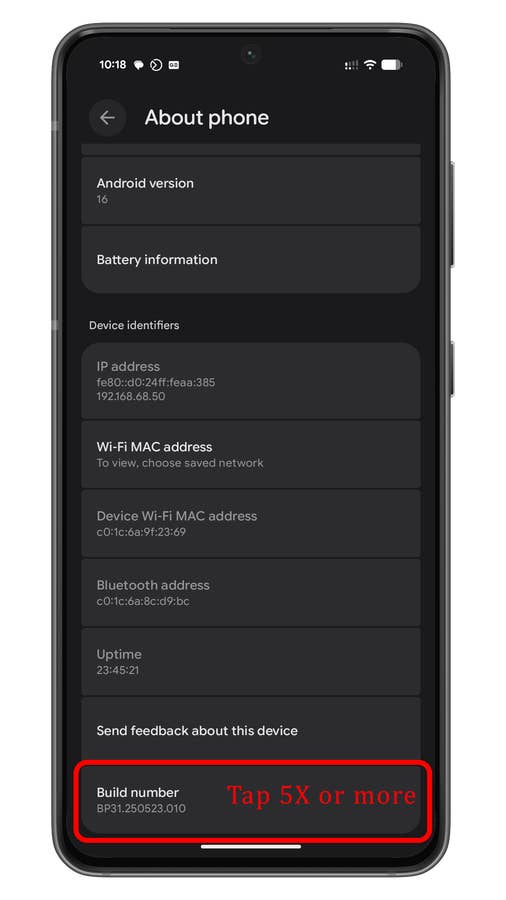
Tap on the build number multiple times until developer mode is activated.
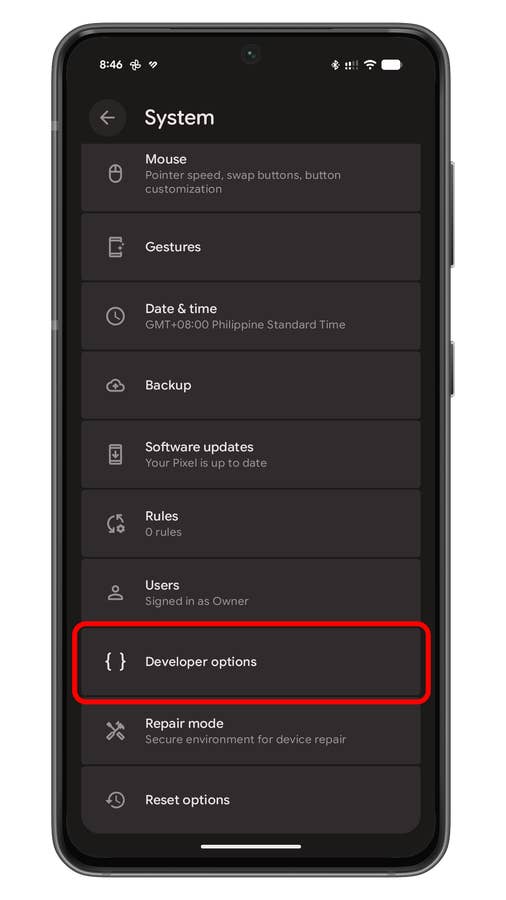
Tap Developer options to open the settings and see more features.
Enable Maximum Refresh Rate When Gaming
One of the tools accessible in Developer options is maximizing the refresh rate for a smoother display experience, especially in gaming. If you enable this, it forces your device to use its peak refresh rate. There’s a caveat with this: it will consume more battery. If you want to enable it, follow the steps next.
- Go to Settings > System.
- Scroll down and tap on Developer options.
- Search “peak refresh rate” or scroll down to find it.
- Toggle it on.
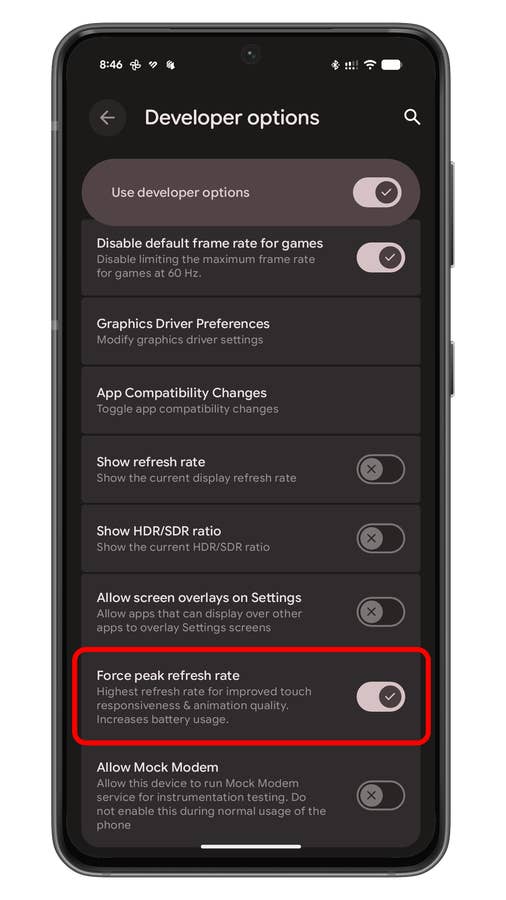
Toggle on Force peak refresh rate to use maximum refresh rate in apps and gaming.
Your Android phone has numerous hidden features that you need to discover and activate to supercharge your device. Do you have other Android tips or tricks we didn’t mention in the list? We’d love to hear our suggestions in the comments.
We mark partner links with this symbol. If you click on one of these links or buttons–or make a purchase through them–we may receive a small commission from the retailer. This doesn’t affect the price you pay, but it helps us keep nextpit free for everyone. Thanks for your support! Prices are based on the date of publication of this article and may be subject to change.